
admob-mcp-server
Enables natural language queries and management of AdMob apps, ad units, reports, and mediation through the Google AdMob API.
README
AdMob MCP Server


English | 한국어
Ask your AI assistant about your AdMob apps and earnings — in plain language:
- "How much did my apps earn in the last 7 days, broken down by country?"
- "Which mediation ad source had the best eCPM this month?"
- "Compare the RPM of my banner vs. rewarded ad units."
- "Create a rewarded ad unit for my new game."
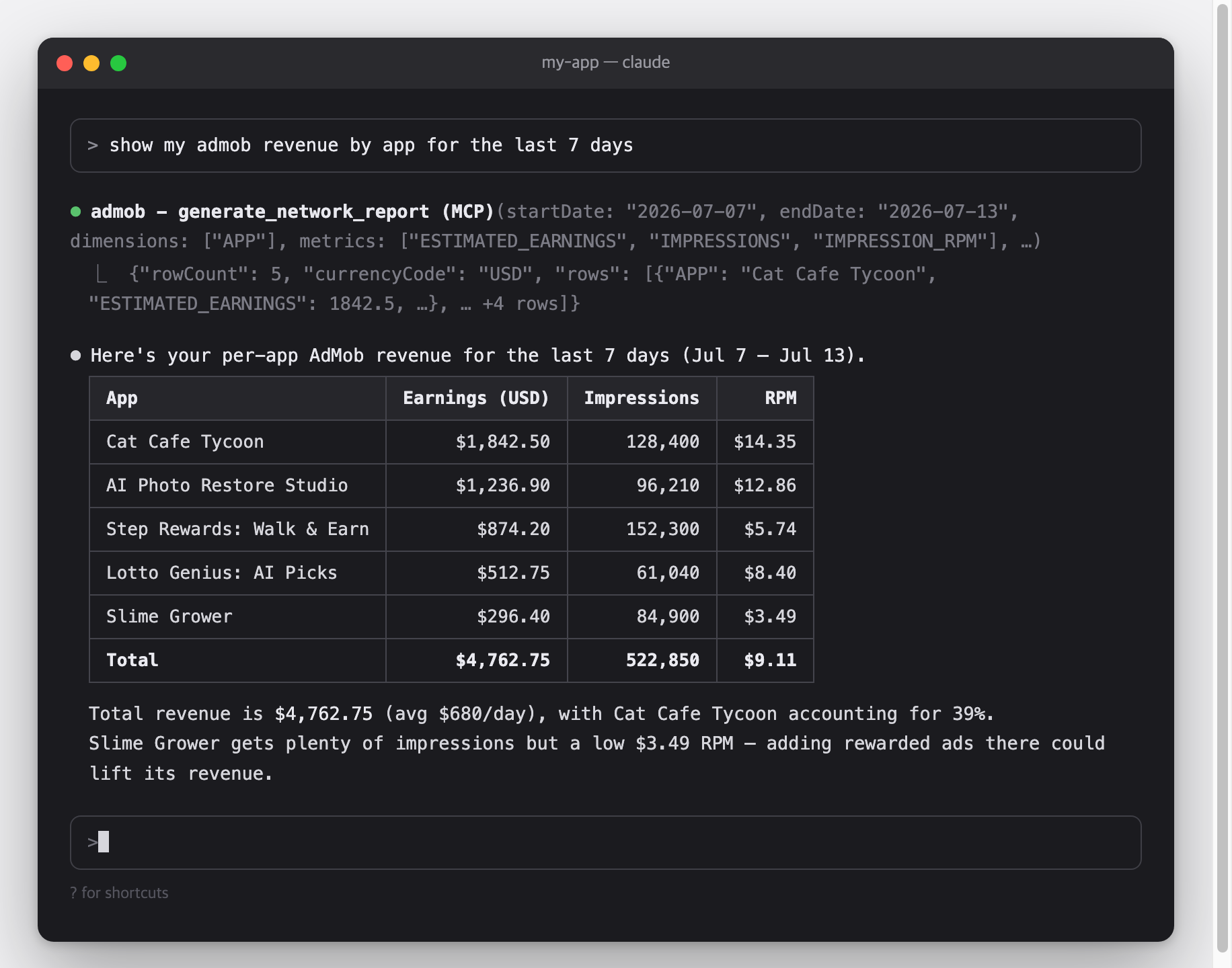
This is a Model Context Protocol (MCP) server for the Google AdMob API.
It works with Claude Code, Claude Desktop, Cursor, Gemini CLI, and any other MCP-capable AI client.
Architecture
flowchart LR
    C["MCP client<br/>Claude Code · Claude Desktop · Cursor · Gemini CLI"]

    subgraph S["admob-mcp-server — runs on your machine"]
        direction TB
        T["18 tools in 5 toolsets<br/>accounts · apps · adunits · reports · mediation<br/>(filtered by --toolsets / --read-only)"]
        A["Credential resolver<br/>env vars → token.json → gcloud ADC"]
        R["Report flattener<br/>chunk stream → rows · micros → currency"]
    end

    G["Google AdMob API<br/>v1beta"]

    C <-->|"MCP over stdio"| T
    T --> A
    A <-->|"OAuth 2.0 / HTTPS"| G
    G -.->|"report chunks"| R
    R -.-> T
Credentials and revenue data travel only between your machine and Google — there is no third-party server in between.
Features
- Full AdMob API v1beta coverage — 18 tools across accounts, apps, ad units, reports, and mediation, including write operations the v1 API doesn't have
- Reports made readable — streaming report responses are flattened into simple row tables, and monetary values (micros) are converted to real currency units
- Read-only mode when you want it — pass
--read-onlyto hide all write tools (create/update) and issue tokens that can't modify anything - Toolsets — enable only the tool groups you need, e.g.
--toolsets reports,accounts - Three authentication options — one-command browser sign-in (
npx admob-mcp-server auth), environment-variable refresh token, or gcloud Application Default Credentials - Built-in analysis prompts and report-spec reference resources
Setup at a glance
One-time setup, roughly 10 minutes:
| Step | What you do | Where |
|---|---|---|
| 1. Google Cloud setup | Register a personal "app" so Google lets you access your own data | browser |
| 2. Sign in | Run one command and log in with Google | terminal |
| 3. Connect your AI client | Add one config entry and restart the client | terminal |
Requirements
- Node.js 18 or newer — check with
node --version; if missing, install from nodejs.org - An AdMob account and the Google account that owns it
Setup
Part 1 — Google Cloud setup
Why is this needed?
The AdMob API has no simple API keys — Google requires every program that accesses your data to be registered as an "OAuth app".
Here you register a personal one that only you will use.
It's free and needs no billing setup.
- Create (or select) a Google Cloud project: console.cloud.google.com/projectcreate — any name works; reusing an existing project is fine too.
- Enable the AdMob API: console.cloud.google.com/apis/library/admob.googleapis.com → check that your project is selected in the top bar → Enable.
- Configure the OAuth consent screen: console.cloud.google.com/auth/overview — the first visit opens a short wizard:
- App name: anything (e.g.
admob-mcp), and your email as the support/contact email - Audience: External
- Finish the wizard — you do not need to submit the app for Google's verification
- Then go to Audience → Test users → Add users and add the Google account that owns your AdMob account
- App name: anything (e.g.
- Create an OAuth client: console.cloud.google.com/apis/credentials → Create credentials → OAuth client ID
- Application type: Desktop app
- After creating it, click Download JSON — you'll use this file in Part 2
[!WARNING] While the consent screen is in Testing mode, Google expires sign-ins after 7 days, so you'll need to re-run the sign-in weekly.
To stop that, publish the app (Audience → Publish app).
Publishing for your own use doesn't require Google's verification — you'll just see an "unverified app" warning during sign-in, which is expected.
Part 2 — Sign in
Move the JSON file you downloaded to where the server looks for it, then run the sign-in command:
mkdir -p ~/.admob-mcp
mv ~/Downloads/client_secret_*.json ~/.admob-mcp/oauth_client.json

npx admob-mcp-server auth
(On Windows, move the file to C:\Users\<you>\.admob-mcp\oauth_client.json in Explorer, then run the npx command.)
Your browser opens.
Pick the Google account that owns your AdMob account and allow access.
If you see a "Google hasn't verified this app" warning, that's your own app from Part 1 — click "Continue".
When the terminal prints Setup complete, your sign-in is saved to ~/.admob-mcp/token.json and reused from then on.
By default the sign-in covers every tool, including write tools.
If you only want reporting access, run npx admob-mcp-server auth --read-only instead.
What the auth command does:
sequenceDiagram
    autonumber
    participant T as Terminal
    participant S as admob-mcp-server
    participant B as Browser
    participant G as Google

    T->>S: npx admob-mcp-server auth
    S->>S: read ~/.admob-mcp/oauth_client.json
    S->>B: open consent URL (loopback redirect, random port)
    B->>G: sign in & allow scopes
    G-->>S: authorization code → refresh token
    S->>S: save ~/.admob-mcp/token.json (reused for every later call)
<details> <summary><b>Advanced: environment variables (headless / CI)</b></summary>
If you already have a refresh token, no files are needed (write tools additionally need the token to cover the admob.monetization scope):
export GOOGLE_CLIENT_ID="....apps.googleusercontent.com"
export GOOGLE_CLIENT_SECRET="..."
export GOOGLE_REFRESH_TOKEN="..."
</details>
<details> <summary><b>Advanced: gcloud Application Default Credentials</b></summary>
The same pattern Google's official Analytics/Ads MCP servers use:
gcloud auth application-default login \
  --scopes=https://www.googleapis.com/auth/admob.readonly,https://www.googleapis.com/auth/admob.report,https://www.googleapis.com/auth/admob.monetization,https://www.googleapis.com/auth/cloud-platform \
  --client-id-file=path/to/oauth_client.json
Drop the admob.monetization scope if you only want reporting access.
</details>
Credential resolution order: environment variables → token.json (from auth) → ADC.
Part 3 — Connect your AI client
Pick your client below.
MCP servers are loaded when the client starts, so restart the client after adding the config.
Claude Code
claude mcp add admob -- npx -y admob-mcp-server
Verify with claude mcp list — you should see admob: ... - ✔ Connected.
Claude Desktop — open Settings → Developer → Edit Config, which opens claude_desktop_config.json (macOS: ~/Library/Application Support/Claude/, Windows: %APPDATA%\Claude\), and add:
{
  "mcpServers": {
    "admob": {
      "command": "npx",
      "args": ["-y", "admob-mcp-server"]
    }
  }
}
Restart the app; the admob tools appear in the tools menu of the chat input.
Cursor — add the same mcpServers block to ~/.cursor/mcp.json, then check Settings → MCP shows admob as enabled.
Gemini CLI — add the same mcpServers block to ~/.gemini/settings.json, then check with /mcp inside the CLI.
[!TIP] If you used the environment-variable sign-in, pass the variables through your client's
envblock (Claude Code: repeat--env KEY=valuebefore--; JSON configs: add an"env": { ... }object next to"args").
Try it
You don't call tools yourself — just ask in plain language and the assistant picks the right tools.
Some starters:
- "What did my apps earn last week?"
- "Break down this month's revenue by country and app."
- "Which ad format had the highest RPM in the last 30 days?"
- "How is my mediation doing? Compare ad sources by observed eCPM."
- "List my apps and their ad units."
- "Create a rewarded ad unit named 'shop_reward' for my game app."
Most clients ask for your permission before each tool call, so nothing (especially write operations) runs without your approval.
Configuration
All configuration is optional — the defaults work for a single AdMob account.
Environment variables
| Variable | Description | Default |
|---|---|---|
ADMOB_ACCOUNT |
Publisher ID (pub-XXXXXXXXXXXXXXXX). Only needed when your login can access multiple accounts |
auto-discovered |
ADMOB_TOOLSETS |
Comma-separated toolsets to enable | all |
ADMOB_READ_ONLY |
true to skip write tools |
false |
ADMOB_CREDENTIALS_DIR |
Directory for oauth_client.json / token.json |
~/.admob-mcp |
ADMOB_OAUTH_CLIENT_FILE |
Path to the OAuth client JSON used by auth |
<credentials dir>/oauth_client.json |
GOOGLE_CLIENT_ID |
OAuth client ID (env sign-in; also used by auth instead of the JSON file) |
— |
GOOGLE_CLIENT_SECRET |
OAuth client secret (env sign-in) | — |
GOOGLE_REFRESH_TOKEN |
OAuth refresh token (env sign-in) | — |
CLI flags
| Flag | Description |
|---|---|
--toolsets <names> |
Same as ADMOB_TOOLSETS, e.g. --toolsets reports,apps |
--read-only |
Same as ADMOB_READ_ONLY=true |
--account <pub-id> |
Same as ADMOB_ACCOUNT |
--client-file <path> |
Same as ADMOB_OAUTH_CLIENT_FILE (for auth) |
CLI flags take precedence over environment variables.
Flags go after the command in your client config, e.g. npx -y admob-mcp-server --read-only.
Tools
A "tool" is a function the AI assistant can call on your behalf.
Tools are grouped into five toolsets; all are enabled by default, and --read-only skips the write tools:
| Toolset | Read tools | Write tools (skipped with --read-only) |
|---|---|---|
accounts |
list_accounts, get_account |
— |
apps |
list_apps |
create_app |
adunits |
list_ad_units |
create_ad_unit |
reports |
generate_network_report, generate_mediation_report, generate_campaign_report |
— |
mediation |
list_ad_sources, list_adapters, list_mediation_groups, list_ad_unit_mappings |
create_mediation_group, update_mediation_group, create_ad_unit_mapping, create_mediation_ab_experiment, stop_mediation_ab_experiment |
Read tools require the admob.readonly / admob.report scopes; write tools require admob.monetization (requested by default during auth).
accounts
| Tool | Description |
|---|---|
list_accounts |
List accessible publisher accounts — use to find your pub-... ID |
get_account |
Get account details: publisher ID, reporting currency, reporting time zone |
apps
| Tool | Description |
|---|---|
list_apps |
List registered apps with app ID, platform, store link, and approval state |
create_app |
Create an app — link a store listing via appStoreId, or register manually via displayName |
adunits
| Tool | Description |
|---|---|
list_ad_units |
List ad units with their IDs, formats, and owning apps |
create_ad_unit |
Create an ad unit (appId, displayName, adFormat, optional adTypes / rewardSettings) |
reports
All report tools take startDate / endDate (YYYY-MM-DD), metrics, and optional dimensions, dimensionFilters, sortConditions, maxReportRows (default 1000), currencyCode.
Responses are flat tables; monetary metrics are converted from micros to currency units.
| Tool | Description |
|---|---|
generate_network_report |
AdMob Network performance: earnings, impressions, clicks, match rate, RPM, ... |
generate_mediation_report |
Mediation performance across ad sources: earnings, observed eCPM per AD_SOURCE / MEDIATION_GROUP |
generate_campaign_report |
Cross-promotion campaign stats (last 30 days only): impressions, clicks, installs, cost |
Valid dimensions/metrics per report are exposed as MCP resources (reference documents the assistant can read): admob://reference/network-report-spec, mediation-report-spec, campaign-report-spec.
mediation
| Tool | Description |
|---|---|
list_ad_sources |
List available mediation ad sources (ad networks) and their IDs |
list_adapters |
List adapters of an ad source, incl. required configuration keys |
list_mediation_groups |
List mediation groups with targeting and lines (supports filter) |
list_ad_unit_mappings |
List third-party placements mapped to an ad unit |
create_ad_unit_mapping |
Map an ad unit to a third-party placement via an adapter |
create_mediation_group |
Create a mediation group (targeting + mediation lines) |
update_mediation_group |
Patch a mediation group using an updateMask |
create_mediation_ab_experiment |
Start an A/B experiment on a mediation group |
stop_mediation_ab_experiment |
Stop the experiment, choosing the winning variant |
Prompts
Prompts are ready-made analysis requests.
Your client surfaces them as slash commands or a prompt picker (e.g. /top_performing_apps in Claude Code).
All take an optional days argument:
| Prompt | What it does |
|---|---|
top_performing_apps |
Ranks your apps by revenue with RPM and match-rate context |
revenue_summary |
Daily revenue trend with anomaly call-outs |
compare_ad_formats |
Compares earnings and efficiency across ad formats |
Security & privacy
- The server runs entirely on your computer.
Your data flows only between your machine and Google's API — never through any third-party server. - Two files are stored locally, both readable only by your user account:
~/.admob-mcp/oauth_client.json(your OAuth app) and~/.admob-mcp/token.json(your sign-in). - To sign out: delete
~/.admob-mcp/token.json, and optionally revoke the app's access at myaccount.google.com/permissions. - Worried about accidental changes?
Run with--read-only— write tools disappear entirely and the sign-in only requests read scopes.
Troubleshooting
Install & connection
command not found: npx / spawn npx ENOENT
- Cause: Node.js is not installed, or your client can't find it.
- Fix: install Node 18+ from nodejs.org, then restart the client.
The server doesn't appear in the client
- Cause: MCP servers load at client startup, or the server fails to start.
- Fix: restart the client first.
Then check its MCP status (Claude Code:claude mcp list, Gemini CLI:/mcp), and make surenpx -y admob-mcp-serverruns in a terminal without errors.
Sign-in & auth
"No usable Google credentials found"
- Cause: sign-in hasn't been set up yet.
- Fix: follow Part 2 — Sign in.
invalid_grant / "token has been expired or revoked"
- Cause: your sign-in expired.
With a consent screen in Testing mode this happens every 7 days. - Fix: re-run
npx admob-mcp-server auth.
To stop it recurring, publish the app (Audience → Publish app).
access_denied during browser sign-in
- Cause: the Google account you picked is not a test user of the consent screen.
- Fix: add it under Audience → Test users, or publish the app.
"The publisher could not be authenticated"
- Cause: the Google account you signed in with has no active AdMob account.
- Fix: re-run
npx admob-mcp-server authand pick the account that owns your AdMob account in the account chooser.
API errors
403 PERMISSION_DENIED
- Cause: the AdMob API isn't enabled, the wrong Google account is signed in, or the write scope is missing.
- Fix: check the following:
- The AdMob API is enabled in the same project as your OAuth client
- You signed in with the account that owns the AdMob account
- For write tools, your token covers
admob.monetization— tokens fromauth --read-onlycan't write; re-runnpx admob-mcp-server auth
429 RESOURCE_EXHAUSTED
- Cause: AdMob API quota hit (usage limits).
- Fix: retry later, or reduce the request — narrower date range, fewer dimensions.
"Multiple AdMob accounts found"
- Cause: your Google login can access several publisher accounts.
- Fix: set
ADMOB_ACCOUNT=pub-...(find IDs withlist_accounts).
Development
git clone https://github.com/ParkSangGwon/admob-mcp-server.git
cd admob-mcp-server
npm install
npm test
npm run build

# debug with the MCP Inspector
npm run inspect
To run a local build in a client, point it at the built entry instead of npx: node /path/to/admob-mcp-server/dist/index.js.
Releases: pushing a v* tag runs CI and publishes to npm with provenance (see .github/workflows/release.yml).
Contributing
Issues and pull requests are welcome.
For larger changes, please open an issue first to discuss the direction.
Make sure npm run lint, npm run format:check, and npm test pass.
License
推荐服务器

Baidu Map
百度地图核心API现已全面兼容MCP协议,是国内首家兼容MCP协议的地图服务商。

Playwright MCP Server
一个模型上下文协议服务器,它使大型语言模型能够通过结构化的可访问性快照与网页进行交互,而无需视觉模型或屏幕截图。

Magic Component Platform (MCP)
一个由人工智能驱动的工具,可以从自然语言描述生成现代化的用户界面组件,并与流行的集成开发环境(IDE)集成,从而简化用户界面开发流程。

Audiense Insights MCP Server
通过模型上下文协议启用与 Audiense Insights 账户的交互,从而促进营销洞察和受众数据的提取和分析,包括人口统计信息、行为和影响者互动。

VeyraX
一个单一的 MCP 工具,连接你所有喜爱的工具:Gmail、日历以及其他 40 多个工具。

graphlit-mcp-server
模型上下文协议 (MCP) 服务器实现了 MCP 客户端与 Graphlit 服务之间的集成。 除了网络爬取之外,还可以将任何内容(从 Slack 到 Gmail 再到播客订阅源)导入到 Graphlit 项目中,然后从 MCP 客户端检索相关内容。

Kagi MCP Server
一个 MCP 服务器,集成了 Kagi 搜索功能和 Claude AI,使 Claude 能够在回答需要最新信息的问题时执行实时网络搜索。

e2b-mcp-server
使用 MCP 通过 e2b 运行代码。

Neon MCP Server
用于与 Neon 管理 API 和数据库交互的 MCP 服务器

Exa MCP Server
模型上下文协议(MCP)服务器允许像 Claude 这样的 AI 助手使用 Exa AI 搜索 API 进行网络搜索。这种设置允许 AI 模型以安全和受控的方式获取实时的网络信息。