
claude-mermaid
MCP Server to previewing mermaid diagrams. https://github.com/veelenga/claude-mermaid/
README
Claude Mermaid MCP Server
MCP server for rendering Mermaid diagrams in Claude Code with live reload functionality.
Automatically renders diagrams in your browser with real-time updates as you refine them. Perfect for iterative diagram development and documentation workflows.
✨ Features
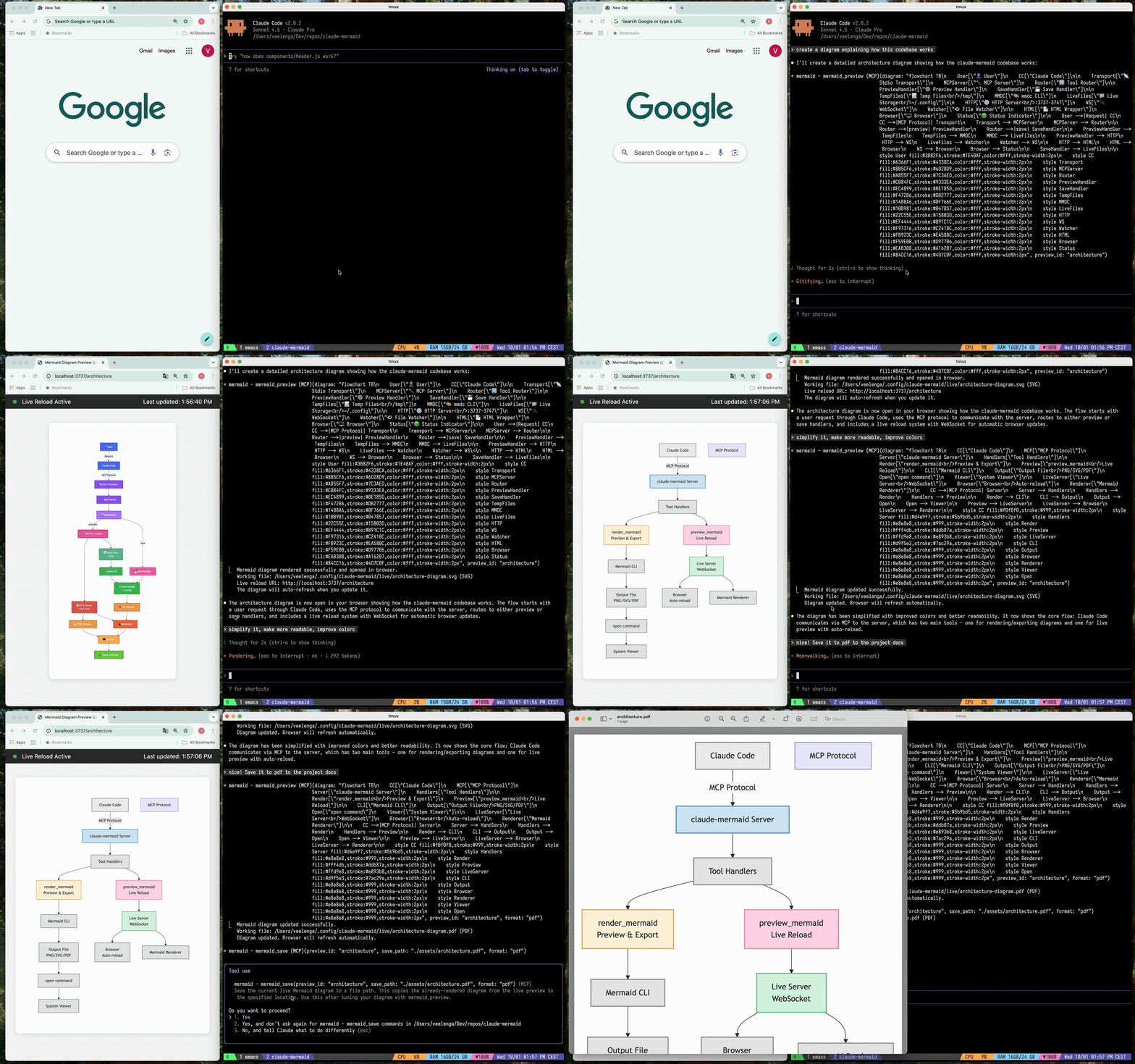
- 🔄 Live Reload - Diagrams auto-refresh in your browser as you edit
- 🎨 Multiple Save Formats - Export to SVG, PNG, or PDF
- 🌈 Themes - Choose from default, forest, dark, or neutral themes
- 📐 Customizable - Control dimensions, scale, and background colors
- 🪄 Interactive Preview - Pan diagrams by dragging, zoom with browser controls, reset position with one click
- 🗂️ Multiple Previews - Use
preview_idto work on multiple diagrams simultaneously - 💾 Persistent Working Files - Live previews are stored under
~/.config/claude-mermaid/live
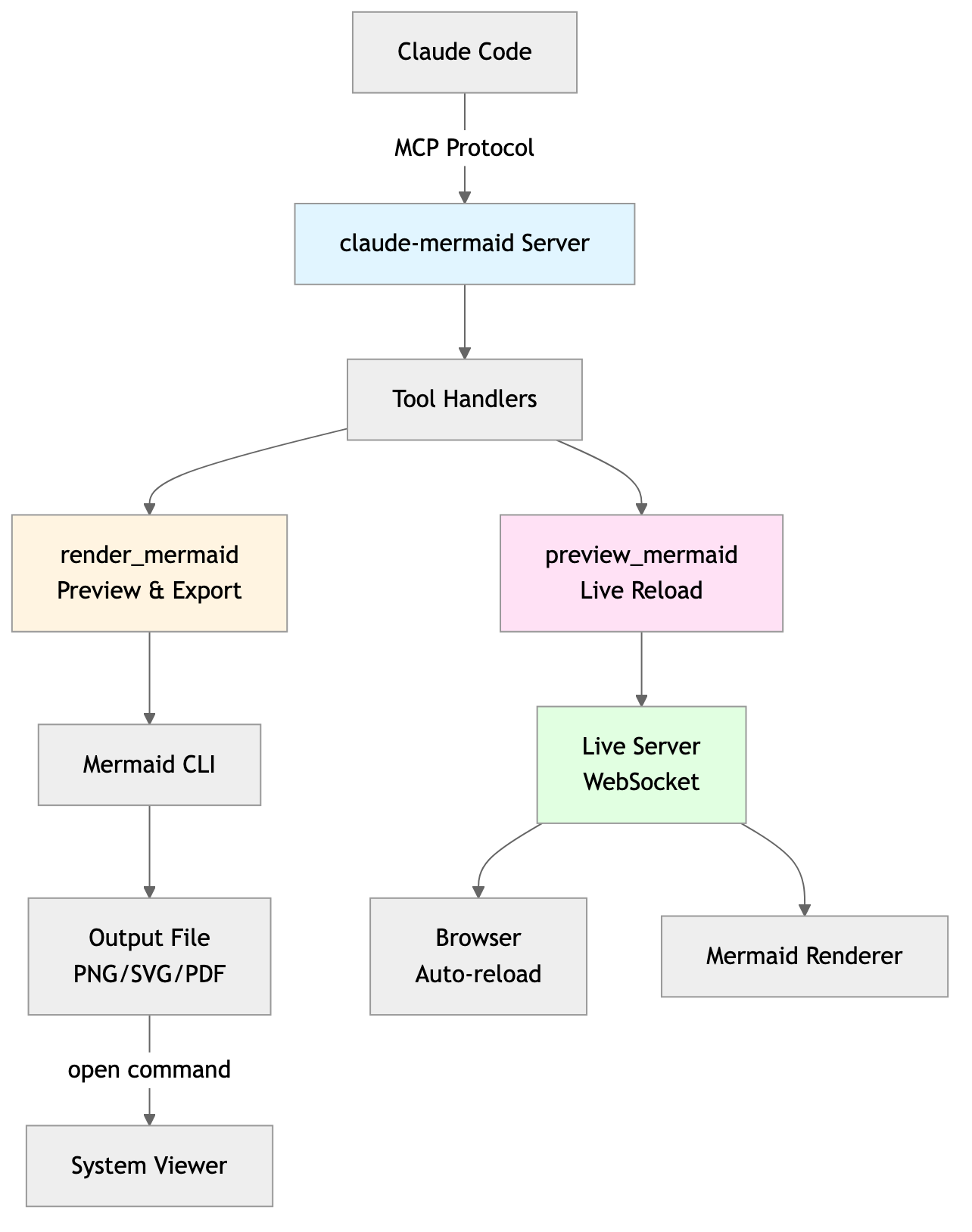
Architecture
<details> <summary>Project Architecture Diagram</summary>
</details>
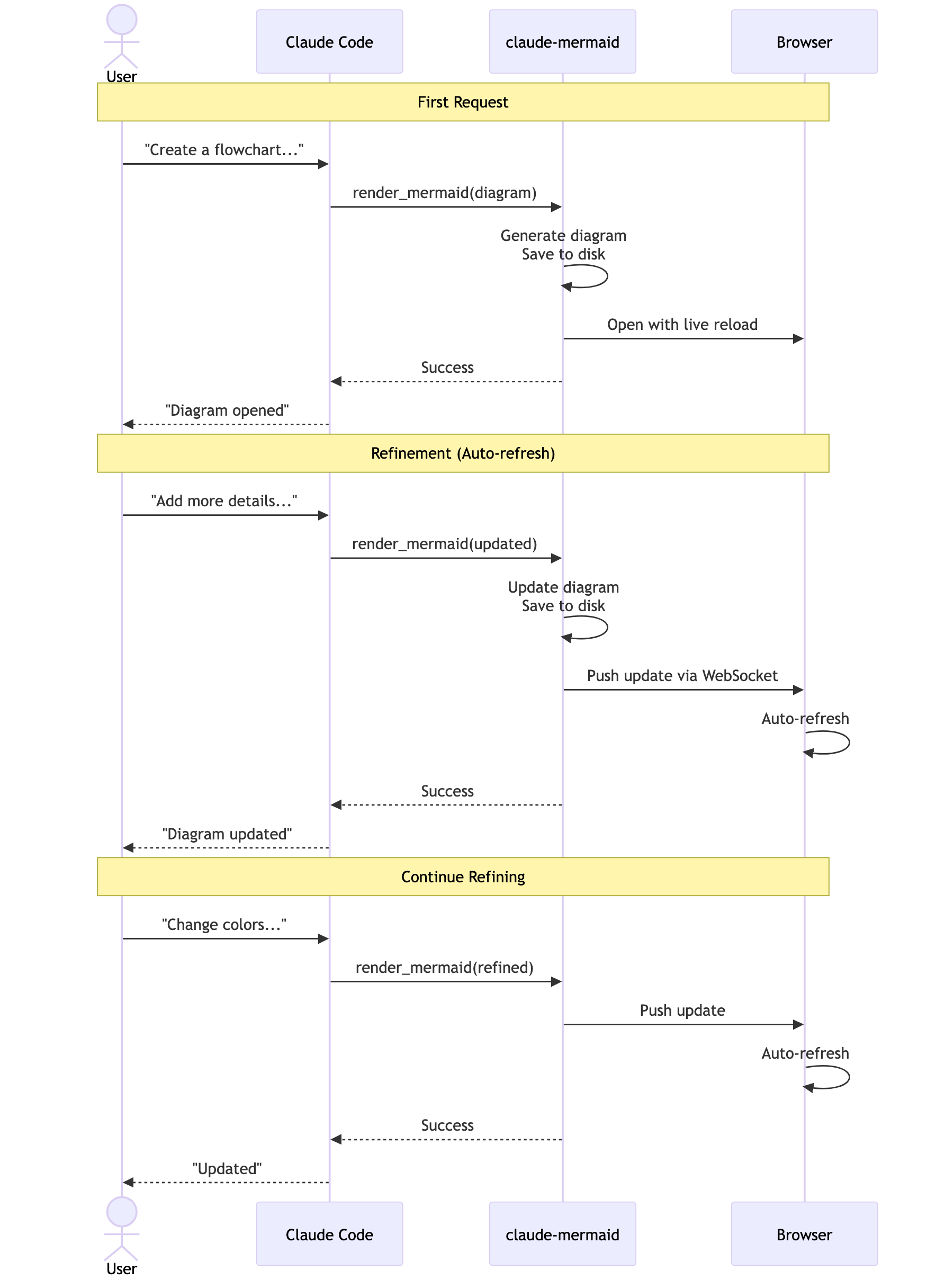
<details> <summary>User Workflow Diagram</summary>
</details>
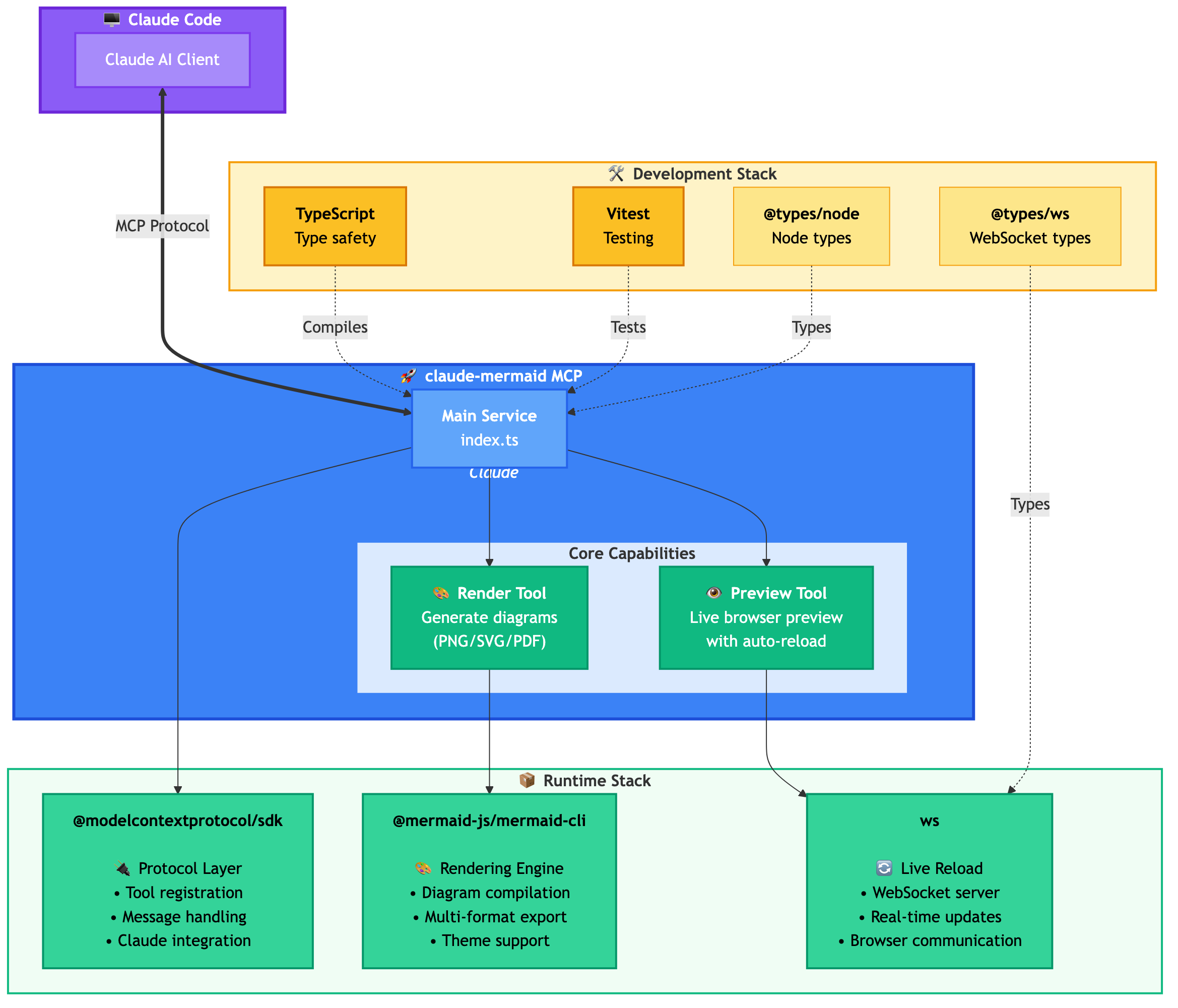
<details> <summary>Dependencies Diagram</summary>
</details>
🚀 Quick Start
1. Install
From npm:
npm install -g claude-mermaid
From source:
git clone https://github.com/veelenga/claude-mermaid.git
cd claude-mermaid
npm install && npm run build && npm install -g .
2. Configure Claude Code
Global setup (recommended - works in all projects):
claude mcp add --scope user mermaid claude-mermaid
Project-specific setup:
claude mcp add mermaid claude-mermaid
Manual configuration:
Add to your MCP config file (.claude.json or .mcp.json):
{
  "mcpServers": {
    "mermaid": {
      "command": "claude-mermaid"
    }
  }
}
3. Verify Installation
claude mcp list
You should see mermaid: claude-mermaid - ✓ Connected
🔌 Other MCP Client Configurations
While this server is optimized for Claude Code, it can work with any MCP-compatible client. Here's how to configure it for other popular tools:
<details> <summary><strong>Codex</strong></summary>
Add to your Codex MCP settings file (~/.codex/mcp_settings.json):
{
  "mcpServers": {
    "mermaid": {
      "command": "claude-mermaid"
    }
  }
}
Or configure via Codex CLI:
codex mcp add mermaid claude-mermaid
</details>
<details> <summary><strong>Cursor</strong></summary>
Add to your Cursor MCP config file (.cursor/mcp.json or settings):
{
  "mcpServers": {
    "mermaid": {
      "command": "claude-mermaid"
    }
  }
}
Or use Cursor's settings UI:
- Open Cursor Settings (Cmd/Ctrl + ,)
- Navigate to MCP Servers
- Add a new server with command:
claude-mermaid
</details>
<details> <summary><strong>VSCode with Cline Extension</strong></summary>
If using the Cline extension for VSCode:
- Open VSCode settings (Cmd/Ctrl + ,)
- Search for "Cline MCP"
- Add to MCP Settings JSON:
{
  "mcpServers": {
    "mermaid": {
      "command": "claude-mermaid"
    }
  }
}
</details>
<details> <summary><strong>Windsurf</strong></summary>
Add to Windsurf's MCP configuration file:
{
  "mcpServers": {
    "mermaid": {
      "command": "claude-mermaid"
    }
  }
}
Configuration location varies by platform:
- macOS:
~/Library/Application Support/Windsurf/mcp.json - Linux:
~/.config/windsurf/mcp.json - Windows:
%APPDATA%\Windsurf\mcp.json
</details>
<details> <summary><strong>Gemini CLI</strong></summary>
Add to Gemini CLI's MCP configuration file (~/.gemini/mcp.json):
{
  "mcpServers": {
    "mermaid": {
      "command": "claude-mermaid"
    }
  }
}
Or use the Gemini CLI to configure:
gemini config mcp add mermaid --command claude-mermaid
</details>
<details> <summary><strong>Other MCP Clients</strong></summary>
For any MCP-compatible client, use the standard configuration:
{
  "mcpServers": {
    "mermaid": {
      "command": "claude-mermaid"
    }
  }
}
The command claude-mermaid should be available in your PATH after installation.
Note: Some clients may require the full path to the executable:
- Find the path:
which claude-mermaid(Unix/macOS) orwhere claude-mermaid(Windows) - Use absolute path in config:
"command": "/path/to/claude-mermaid"
</details>
💡 Usage
Simply ask Claude Code to create Mermaid diagrams. The server will:
- ✅ Render the diagram
- 🌐 Open it in your browser with live reload
- 🔄 Auto-refresh when you make changes
- 💾 Save to your project path using the
mermaid_savetool
Basic Examples
"Create a Mermaid diagram showing the user authentication flow"
"Draw a sequence diagram for the payment process"
"Generate a flowchart for the deployment pipeline"
Advanced Examples
With custom formatting:
"Create a dark theme architecture diagram with transparent background"
"Generate a forest theme flowchart and save to ./docs/flow.svg"
With specific output format:
"Create an ER diagram and save as PDF to ./docs/schema.pdf"
"Save the flowchart as PNG to ./docs/flow.png"
Note: Browser always shows SVG for live preview, while saving to your chosen format.
Iterative refinement:
"Create a class diagram for the User module"
// Browser opens with live preview
"Add the Address and Order classes with relationships"
// Diagram updates automatically in browser!
Complete Example
"Create a flowchart and save to ./docs/auth-flow.svg:

graph LR
    A[User Login] --> B{Valid Credentials?}
    B -->|Yes| C[Access Granted]
    B -->|No| D[Access Denied]
    C --> E[Dashboard]
    D --> F[Try Again]

    style A fill:#e1f5ff
    style C fill:#d4edda
    style D fill:#f8d7da
"
The diagram will be saved to ./docs/auth-flow.svg and opened in your browser with live reload enabled.
🔧 Tools and Parameters
There are two tools exposed by the MCP server:
mermaid_preview— render and open a live preview
diagram(string, required) — Mermaid diagram codepreview_id(string, required) — Identifier for this preview session. Use different IDs for multiple concurrent diagrams (e.g.,architecture,flow).format(string, defaultsvg) — One ofsvg,png,pdf. Live preview is available only forsvg.theme(string, defaultdefault) — One ofdefault,forest,dark,neutral.background(string, defaultwhite) — Background color. Examples:transparent,white,#F0F0F0.width(number, default800) — Diagram width in pixels.height(number, default600) — Diagram height in pixels.scale(number, default2) — Scale factor for higher quality output.
mermaid_save— save the current live diagram to a path
save_path(string, required) — Destination path (e.g.,./docs/diagram.svg).preview_id(string, required) — Must match thepreview_idused inmermaid_preview.format(string, defaultsvg) — One ofsvg,png,pdf. If the live working file for this format doesn’t exist yet, it is rendered on demand before saving.
🎯 How Live Reload Works
- First render: Opens diagram in browser at
http://localhost:3737/{preview_id} - Make changes: Edit the diagram through Claude Code
- Auto-refresh: Browser detects changes via WebSocket and reloads
- Status indicator: Green dot = connected, Red dot = reconnecting
The live server uses ports 3737-3747 and automatically finds an available port.
Live Preview Controls
- Pan: Click and drag the diagram to move it around
- Zoom: Use browser zoom (Ctrl/Cmd + +/- or pinch-to-zoom on trackpad)
- Reset Position: Click the ⊙ button in the status bar to recenter the diagram
Notes
- Live preview is available for
svgformat only; PNG/PDF are rendered without live reload. - For sequence diagrams, Mermaid does not support
styledirectives insidesequenceDiagram.
🛠️ Development
# Install dependencies
npm install

# Build the project
npm run build

# Run tests
npm test

# Watch mode for development
npm run dev

# Start the MCP server directly
npm start
📝 Troubleshooting
Server not connecting:
# Check if server is installed
claude-mermaid -v

# Reinstall if needed
npm install -g claude-mermaid

# Verify MCP configuration
claude mcp list
Permission denied error:
# Make sure the binary is executable
chmod +x $(which claude-mermaid)
Port already in use:
- The server uses ports 3737-3747
- It will automatically find an available port
- Check if another process is using these ports:
lsof -i :3737-3747
Diagrams not rendering or live reload not working:
The server logs to ~/.config/claude-mermaid/logs/:
mcp.log- Tool requests and diagram renderingweb.log- HTTP/WebSocket connections and live reload
Enable debug logging in your MCP config:
{
  "mcpServers": {
    "mermaid": {
      "command": "claude-mermaid",
      "env": {
        "CLAUDE_MERMAID_LOG_LEVEL": "DEBUG"
      }
    }
  }
}
Then check the logs:
# View MCP operations
tail -f ~/.config/claude-mermaid/logs/mcp.log

# View WebSocket connections
tail -f ~/.config/claude-mermaid/logs/web.log
Available log levels: DEBUG, INFO (default), WARN, ERROR, OFF
🤝 Contributing
Contributions are welcome! Please feel free to submit a Pull Request.
📄 License
MIT - see LICENSE file for details
🔗 Links
推荐服务器

Baidu Map
百度地图核心API现已全面兼容MCP协议,是国内首家兼容MCP协议的地图服务商。

Playwright MCP Server
一个模型上下文协议服务器,它使大型语言模型能够通过结构化的可访问性快照与网页进行交互,而无需视觉模型或屏幕截图。

Magic Component Platform (MCP)
一个由人工智能驱动的工具,可以从自然语言描述生成现代化的用户界面组件,并与流行的集成开发环境(IDE)集成,从而简化用户界面开发流程。

Audiense Insights MCP Server
通过模型上下文协议启用与 Audiense Insights 账户的交互,从而促进营销洞察和受众数据的提取和分析,包括人口统计信息、行为和影响者互动。

VeyraX
一个单一的 MCP 工具,连接你所有喜爱的工具:Gmail、日历以及其他 40 多个工具。

graphlit-mcp-server
模型上下文协议 (MCP) 服务器实现了 MCP 客户端与 Graphlit 服务之间的集成。 除了网络爬取之外,还可以将任何内容(从 Slack 到 Gmail 再到播客订阅源)导入到 Graphlit 项目中,然后从 MCP 客户端检索相关内容。

Kagi MCP Server
一个 MCP 服务器,集成了 Kagi 搜索功能和 Claude AI,使 Claude 能够在回答需要最新信息的问题时执行实时网络搜索。

e2b-mcp-server
使用 MCP 通过 e2b 运行代码。

Neon MCP Server
用于与 Neon 管理 API 和数据库交互的 MCP 服务器

Exa MCP Server
模型上下文协议(MCP)服务器允许像 Claude 这样的 AI 助手使用 Exa AI 搜索 API 进行网络搜索。这种设置允许 AI 模型以安全和受控的方式获取实时的网络信息。