
Figma MCP Server
Gives AI-powered coding tools like Cursor access to Figma design data, enabling them to fetch metadata and implement designs accurately.
README
Figma MCP Server
Give Cursor, Windsurf, Cline, and other AI-powered coding tools access to your Figma files with this Model Context Protocol server.
When Cursor has access to Figma design data, it's way better at one-shotting designs accurately than alternative approaches like pasting screenshots.
Get started quickly, see Configuration for more details:
npx figma-developer-mcp --figma-api-key=<your-figma-api-key>
Demo Video
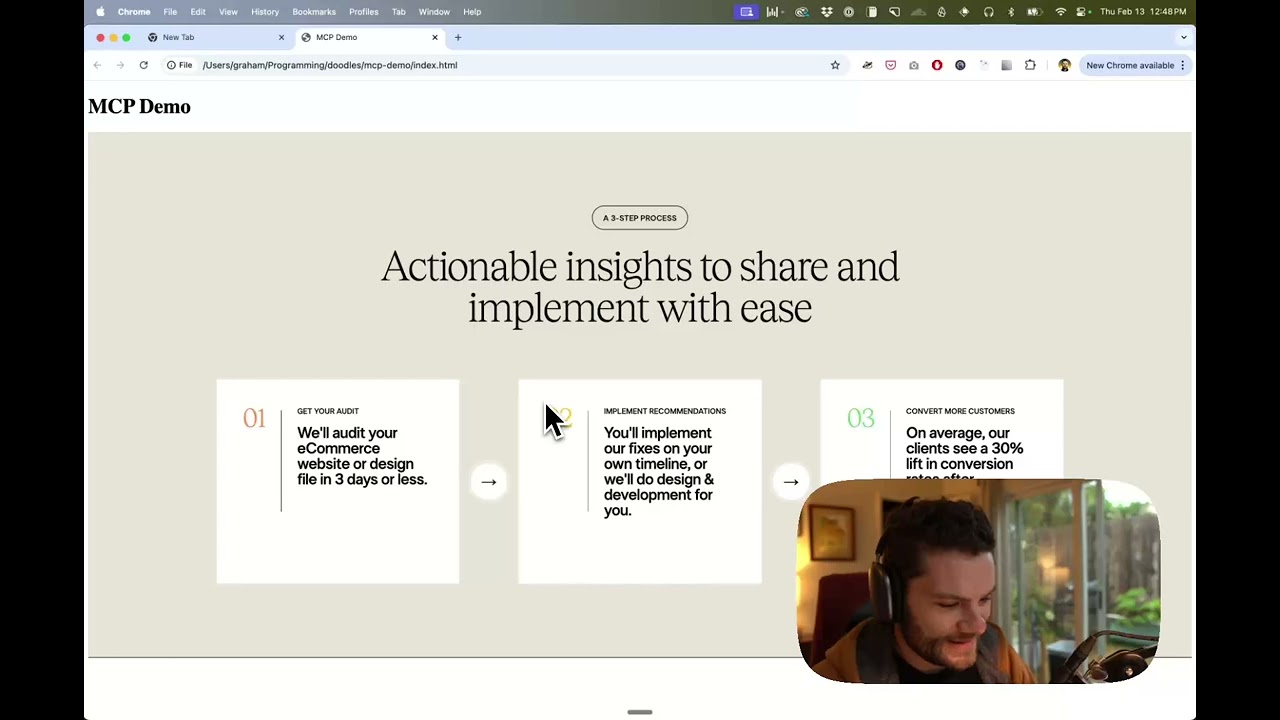
Watch a demo of building a UI in Cursor with Figma design data
<a href="https://glama.ai/mcp/servers/kcftotr525"><img width="380" height="200" src="https://glama.ai/mcp/servers/kcftotr525/badge" alt="Figma Server MCP server" /></a>
How it works
- Open Cursor's composer in agent mode.
- Paste a link to a Figma file, frame, or group.
- Ask Cursor to do something with the Figma file—e.g. implement a design.
- Cursor will fetch the relevant metadata from Figma and use it to write your code.
This MCP server is specifically designed for use with Cursor. Before responding with context from the Figma API, it simplifies and translates the response so only the most relevant layout and styling information is provided to the model.
Reducing the amount of context provided to the model helps make the AI more accurate and the responses more relevant.
Installation
Running the server quickly with NPM
You can run the server quickly without installing or building the repo using NPM:
npx figma-developer-mcp --figma-api-key=<your-figma-api-key>

# or
pnpx figma-developer-mcp --figma-api-key=<your-figma-api-key>

# or
yarn dlx figma-developer-mcp --figma-api-key=<your-figma-api-key>

# or
bunx figma-developer-mcp --figma-api-key=<your-figma-api-key>
Instructions on how to create a Figma API access token can be found here.
JSON config for tools that use configuration files
Many tools like Windsurf, Cline, and Claude Desktop use a configuration file to start the server.
The figma-developer-mcp server can be configured by adding the following to your configuration file:
{
  "mcpServers": {
    "Framelink Figma MCP": {
      "command": "npx",
      "args": ["-y", "figma-developer-mcp", "--figma-api-key=<your-figma-api-key>", "--stdio"]
    }
  }
}
Running the server from local source
- Clone the repository
- Install dependencies with
pnpm install - Copy
.env.exampleto.envand fill in your Figma API access token. Only read access is required. - Run the server with
pnpm run dev, along with any of the flags from the Command-line Arguments section.
Configuration
The server can be configured using either environment variables (via .env file) or command-line arguments. Command-line arguments take precedence over environment variables.
Environment Variables
FIGMA_API_KEY: Your Figma API access token (required)PORT: The port to run the server on (default: 3333)
Command-line Arguments
--version: Show version number--figma-api-key: Your Figma API access token--port: The port to run the server on--stdio: Run the server in command mode, instead of default HTTP/SSE--help: Show help menu
Connecting to Cursor
Start the server
> npx figma-developer-mcp --figma-api-key=<your-figma-api-key>
# Initializing Figma MCP Server in HTTP mode on port 3333...
# HTTP server listening on port 3333
# SSE endpoint available at http://localhost:3333/sse
# Message endpoint available at http://localhost:3333/messages
Connect Cursor to the MCP server
Once the server is running, connect Cursor to the MCP server in Cursor's settings, under the features tab.

After the server has been connected, you can confirm Cursor's has a valid connection before getting started. If you get a green dot and the tools show up, you're good to go!

Start using Composer with your Figma designs
Once the MCP server is connected, you can start using the tools in Cursor's composer, as long as the composer is in agent mode.
Dropping a link to a Figma file in the composer and asking Cursor to do something with it should automatically trigger the get_file tool.
Most Figma files end up being huge, so you'll probably want to link to a specific frame or group within the file. With a single element selected, you can hit CMD + L to copy the link to the element. You can also find it in the context menu:

Once you have a link to a specific element, you can drop it in the composer and ask Cursor to do something with it.
Inspect Responses
To inspect responses from the MCP server more easily, you can run the inspect command, which launches the @modelcontextprotocol/inspector web UI for triggering tool calls and reviewing responses:
pnpm inspect
# > figma-mcp@0.1.12 inspect
# > pnpx @modelcontextprotocol/inspector
#
# Starting MCP inspector...
# Proxy server listening on port 3333
#
# 🔍 MCP Inspector is up and running at http://localhost:5173 🚀
Available Tools
The server provides the following MCP tools:
get_figma_data
Fetches information about a Figma file or a specific node within a file.
Parameters:
fileKey(string, required): The key of the Figma file to fetch, often found in a provided URL likefigma.com/(file|design)/<fileKey>/...nodeId(string, optional, highly recommended): The ID of the node to fetch, often found as URL parameter node-id=<nodeId>depth(number, optional): How many levels deep to traverse the node tree, only used if explicitly requested by you via chat
download_figma_images (work in progress)
Download SVG and PNG images used in a Figma file based on the IDs of image or icon nodes.
Parameters:
fileKey(string, required): The key of the Figma file containing the nodenodes(array, required): The nodes to fetch as imagesnodeId(string, required): The ID of the Figma image node to fetch, formatted as 1234:5678imageRef(string, optional): If a node has an imageRef fill, you must include this variable. Leave blank when downloading Vector SVG images.fileName(string, required): The local name for saving the fetched file
localPath(string, required): The absolute path to the directory where images are stored in the project. Automatically creates directories if needed.
AZTP - Guild Generate Identity and Requirement
Environment
- Setup environment with keyValue of MCP_NAME and AZTP_API_KEY
Where to get AZTP Api Key
- Register at https://www.astha.ai/
- Generate Key
- For get the FREE identity make sure to add your desire domain. And follow the process to get verified.
- Set you domain as default.
推荐服务器

Baidu Map
百度地图核心API现已全面兼容MCP协议,是国内首家兼容MCP协议的地图服务商。

Playwright MCP Server
一个模型上下文协议服务器,它使大型语言模型能够通过结构化的可访问性快照与网页进行交互,而无需视觉模型或屏幕截图。

Magic Component Platform (MCP)
一个由人工智能驱动的工具,可以从自然语言描述生成现代化的用户界面组件,并与流行的集成开发环境(IDE)集成,从而简化用户界面开发流程。

Audiense Insights MCP Server
通过模型上下文协议启用与 Audiense Insights 账户的交互,从而促进营销洞察和受众数据的提取和分析,包括人口统计信息、行为和影响者互动。

VeyraX
一个单一的 MCP 工具,连接你所有喜爱的工具:Gmail、日历以及其他 40 多个工具。

graphlit-mcp-server
模型上下文协议 (MCP) 服务器实现了 MCP 客户端与 Graphlit 服务之间的集成。 除了网络爬取之外,还可以将任何内容(从 Slack 到 Gmail 再到播客订阅源)导入到 Graphlit 项目中,然后从 MCP 客户端检索相关内容。

Kagi MCP Server
一个 MCP 服务器,集成了 Kagi 搜索功能和 Claude AI,使 Claude 能够在回答需要最新信息的问题时执行实时网络搜索。

e2b-mcp-server
使用 MCP 通过 e2b 运行代码。

Neon MCP Server
用于与 Neon 管理 API 和数据库交互的 MCP 服务器

Exa MCP Server
模型上下文协议(MCP)服务器允许像 Claude 这样的 AI 助手使用 Exa AI 搜索 API 进行网络搜索。这种设置允许 AI 模型以安全和受控的方式获取实时的网络信息。