
Google Maps Photos API
MCP server for extracting Google Maps photos as structured JSON, supporting search by place name, URL, or ID, with category filters and stable photo IDs. Enables users to pull full-size image URLs, thumbnails, and gallery metadata for any business or landmark directly through natural language.
README
📸 Google Maps Photos API: every place photo as clean JSON
Pull every photo Google Maps holds for a business or landmark, as structured JSON. Type a place name and get back full-size image URLs, thumbnails, gallery positions, and a stable photo ID for each one.
Actor: Google Maps Photos API on Apify Store
Video Walkthrough
https://www.youtube.com/watch?v=jREWahDGhJM
Quick Start
git clone https://github.com/johnisanerd/Apify-Google-Maps-Photos-API.git
cd Apify-Google-Maps-Photos-API
cp .env.example .env          # paste your Apify token
uv sync
uv run google-maps-photos-api-example.py
Get a free Apify API key at apify.com.
Why Use This Google Maps Photos API?
- No place ID needed. Search by name, or by category and city. Paste a Google Maps URL if you have one. Identifiers work too, and skip the search charge.
- Filter to one gallery section. Menu, food and drink, vibe, by owner, videos, or Street View and 360.
- Stable photo IDs. Every row carries one, so a re-run updates rather than duplicates.
- Category discovery built in. Each place contributes a summary row listing every gallery section it offers, with the ID to filter by.
Features
| Feature | Detail |
|---|---|
| Search by name | searchTerm takes a business name or a category plus a city |
| Google Maps URLs | placeUrls parses the identifier out of the link locally, no lookup |
| Place identifiers | dataId and dataIds accept the hex pair or a fid from a places search |
| Category filter | 8 sections; 5 universal, 3 on food and drink venues |
| Bulk | maxPlacesPerSearch sweeps a whole neighbourhood in one run |
| Localization | hl sets the interface language |
Usage Examples
Search a neighbourhood and pull food photos for the top five matches:
run_input = {
    "searchTerm": "coffee shops in Austin, TX",
    "maxPlacesPerSearch": 5,
    "photoCategory": "food_and_drink",
    "maxPhotosPerPlace": 40,
}
Street View and 360 panoramas for one place:
run_input = {"searchTerm": "Blanton Museum of Art, Austin TX", "photoCategory": "street_view"}
Skip the search charge with identifiers you already have:
run_input = {"dataIds": ["0x8644b5554461664d:0xbc4ff333ec9ad1ad"], "maxPhotosPerPlace": 20}
Input Parameters
| Parameter | Type | Description |
|---|---|---|
searchTerm |
string | Find a place by name, or by category and city. Billed per search. |
searchTerms |
array | Several searches in one run. |
maxPlacesPerSearch |
integer | How many matches per search to fetch photos for. Default 3, max 20. |
placeUrls |
array | Google Maps place URLs. Parsed locally, no search charge. |
dataId / dataIds |
string / array | Place identifiers. No search charge. |
maxPhotosPerPlace |
integer | Default 20. Photos arrive in blocks of 20. |
photoCategory |
select | all, latest, videos, by_owner, street_view, menu, food_and_drink, vibe |
categoryId |
string | A venue-specific section, such as one dish. Overrides photoCategory. |
hl |
string | Two-letter interface language. Default en. |
Output Format
One row per photo:
{
  "result_type": "photo",
  "data_id": "0x8644b5554461664d:0xbc4ff333ec9ad1ad",
  "place_title": "Mozart's Coffee Roasters",
  "position": 1,
  "image": "https://lh3.googleusercontent.com/gps-cs-s/...=w608-h342-k-no",
  "thumbnail": "https://lh3.googleusercontent.com/gps-cs-s/...=w203-h114-k-no",
  "photo_id": "CIABIhAhgrI-VHBBnTZQYGq3jqot",
  "fetched_at": "2026-08-04T00:24:39.188574+00:00"
}
Plus one unbilled summary row per place, which is how you discover its gallery sections:
{
  "result_type": "place_summary",
  "place_title": "Mozart's Coffee Roasters",
  "photos_returned": 20,
  "pages_fetched": 1,
  "place_categories": [
    { "title": "Menu", "id": "CgIYIQ" },
    { "title": "Street View & 360", "id": "CgIgARICCAI" }
  ]
}
Captions, EXIF, contributor names, and upload dates are not returned.
Install in Claude Cowork Desktop
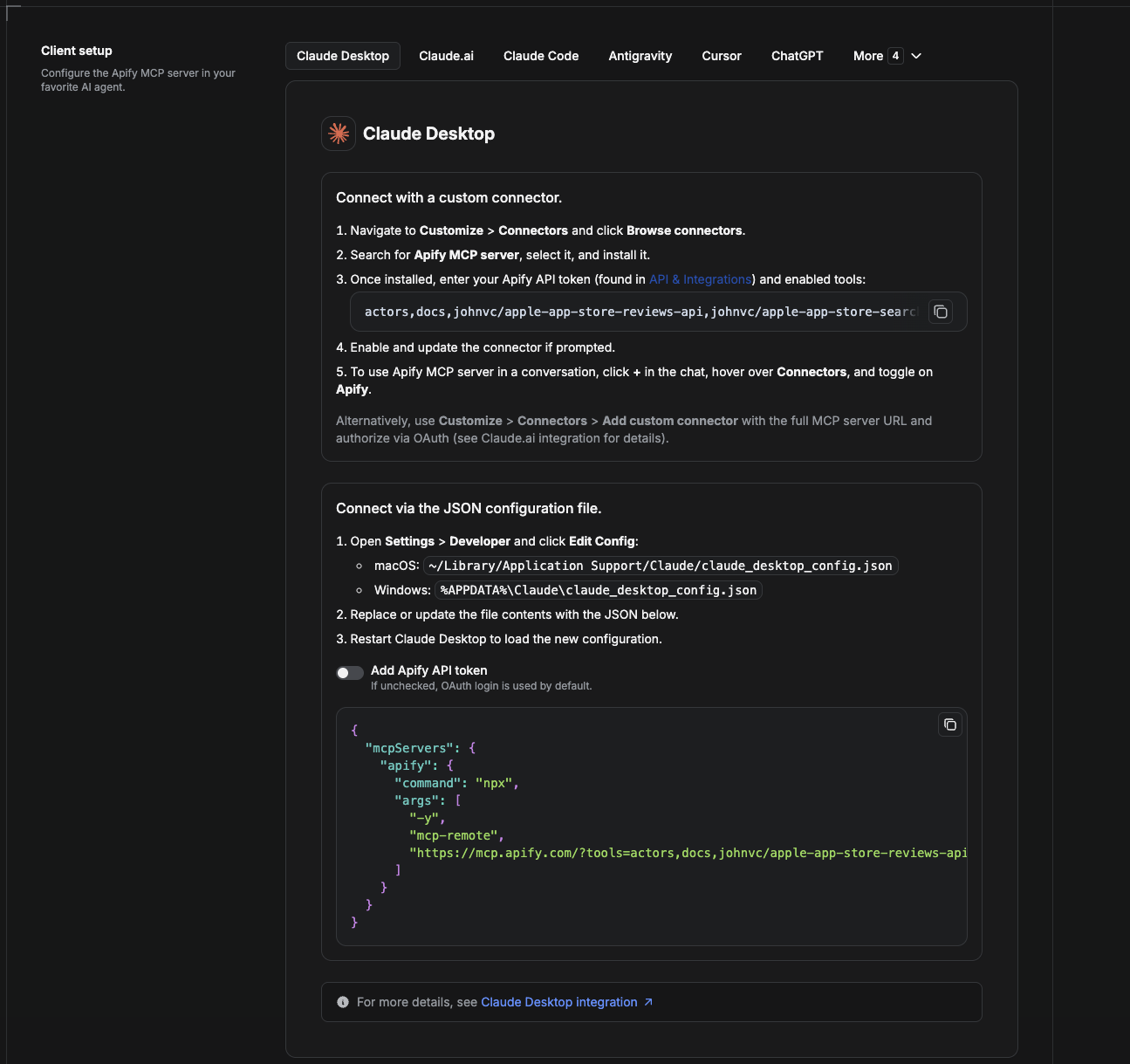
Cowork is the desktop app's automation mode. To give it the Google Maps Photos API as a tool, add the Apify MCP server as a connector.
- Open the Claude desktop app and go to Settings → Connectors (or Settings → Developer → Edit Config to edit
claude_desktop_config.jsondirectly).- macOS:
~/Library/Application Support/Claude/claude_desktop_config.json - Windows:
%APPDATA%\Claude\claude_desktop_config.json
- macOS:
- Add the Apify MCP server, preloaded with only this Actor:
{
  "mcpServers": {
    "apify": {
      "command": "npx",
      "args": [
        "-y",
        "mcp-remote",
        "https://mcp.apify.com/?tools=actors,docs,johnvc/google-maps-photos-api"
      ]
    }
  }
}
- Restart the app. When Cowork first calls the tool, complete the OAuth prompt in your browser, or add your Apify API token in the connector settings to skip OAuth.
- In a Cowork chat, confirm the tool is available and ask it to run the Google Maps Photos API.
Download the desktop app and start a free trial: https://claude.ai/referral/uIlpa7nPLg More help: https://docs.apify.com/platform/integrations/claude-desktop
Install in Claude Code
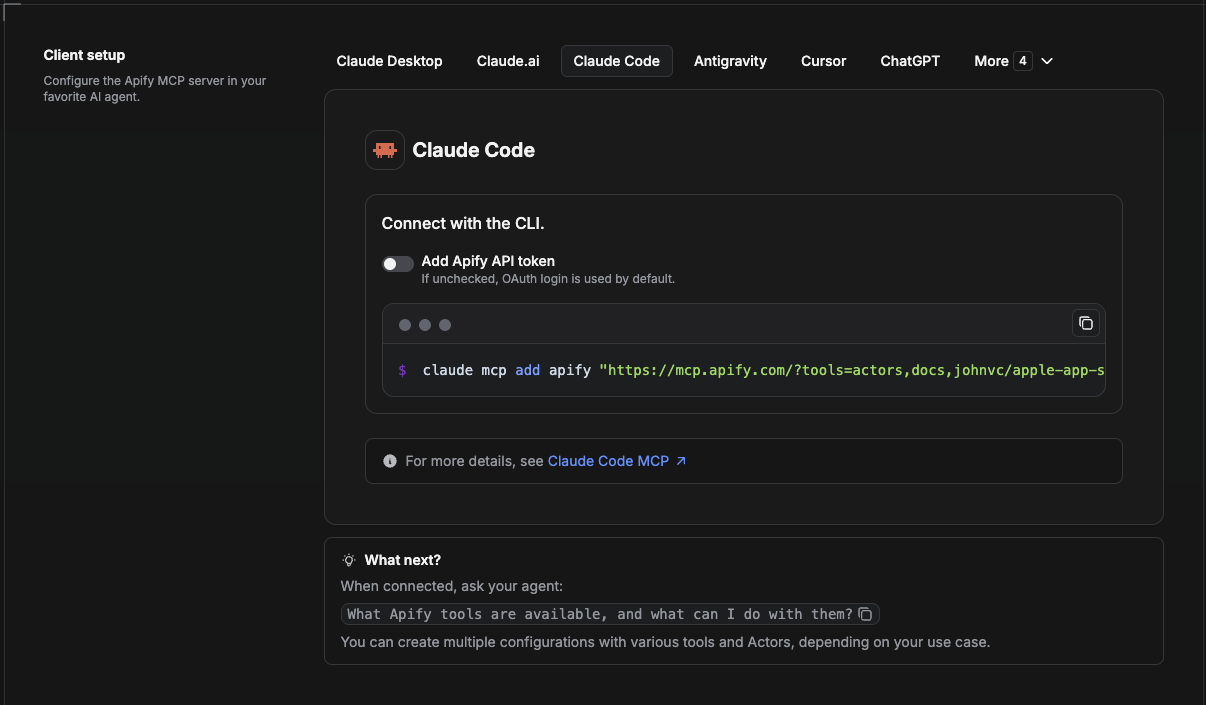
Claude Code is the command-line tool. Add the Actor's MCP server with one command:
claude mcp add --transport http apify \
  "https://mcp.apify.com/?tools=actors,docs,johnvc/google-maps-photos-api"
To use a token instead of browser OAuth:
claude mcp add --transport http apify \
  "https://mcp.apify.com/?tools=actors,docs,johnvc/google-maps-photos-api" \
  --header "Authorization: Bearer YOUR_APIFY_TOKEN"
Then verify with claude mcp list, or run /mcp inside a session. Ask Claude Code to call the Google Maps Photos API.
Try Claude Code free: https://claude.ai/referral/uIlpa7nPLg Claude Code MCP docs: https://code.claude.com/docs/en/mcp
Install in Claude (website)
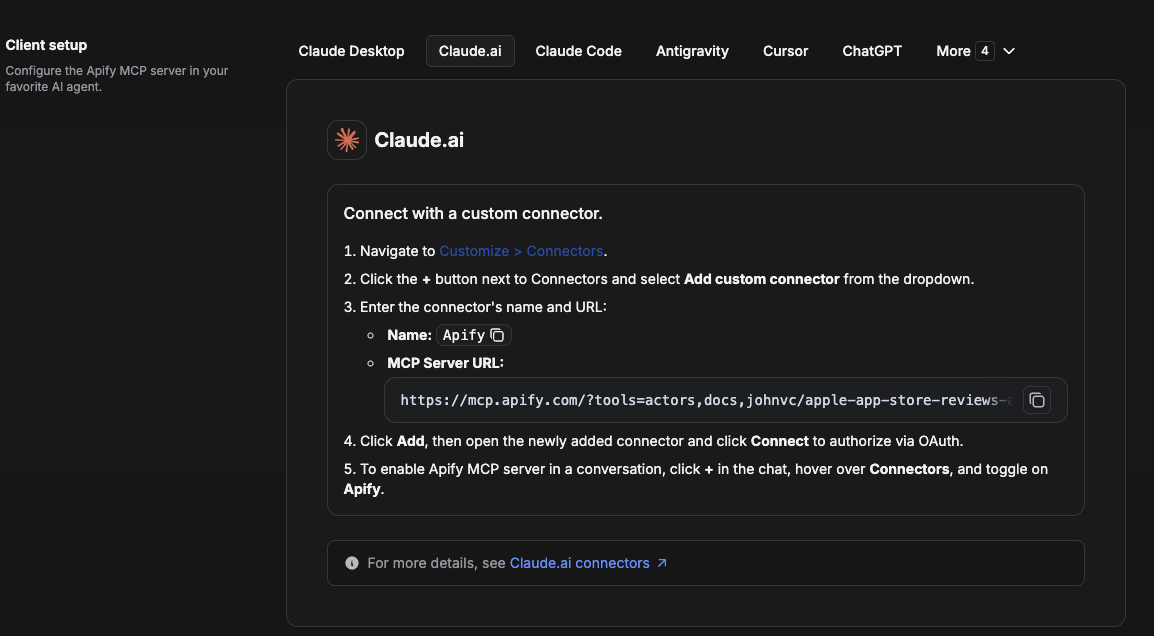
On claude.ai you add Apify as a connector, then enable just this Actor's tool.
- Go to Settings → Connectors → Browse connectors and search for Apify MCP server. Install it (enable or update if prompted).
- When connecting, authenticate with your Apify API token, and enable the tool
johnvc/google-maps-photos-api. - In any chat, open + → Connectors and turn on Apify.
- Alternatively, choose Add custom connector and paste the full MCP URL
https://mcp.apify.com/?tools=actors,docs,johnvc/google-maps-photos-api, using OAuth when prompted. - Ask Claude to run the Google Maps Photos API.
Open Claude on the web: https://claude.ai/referral/uIlpa7nPLg
Install in Cursor
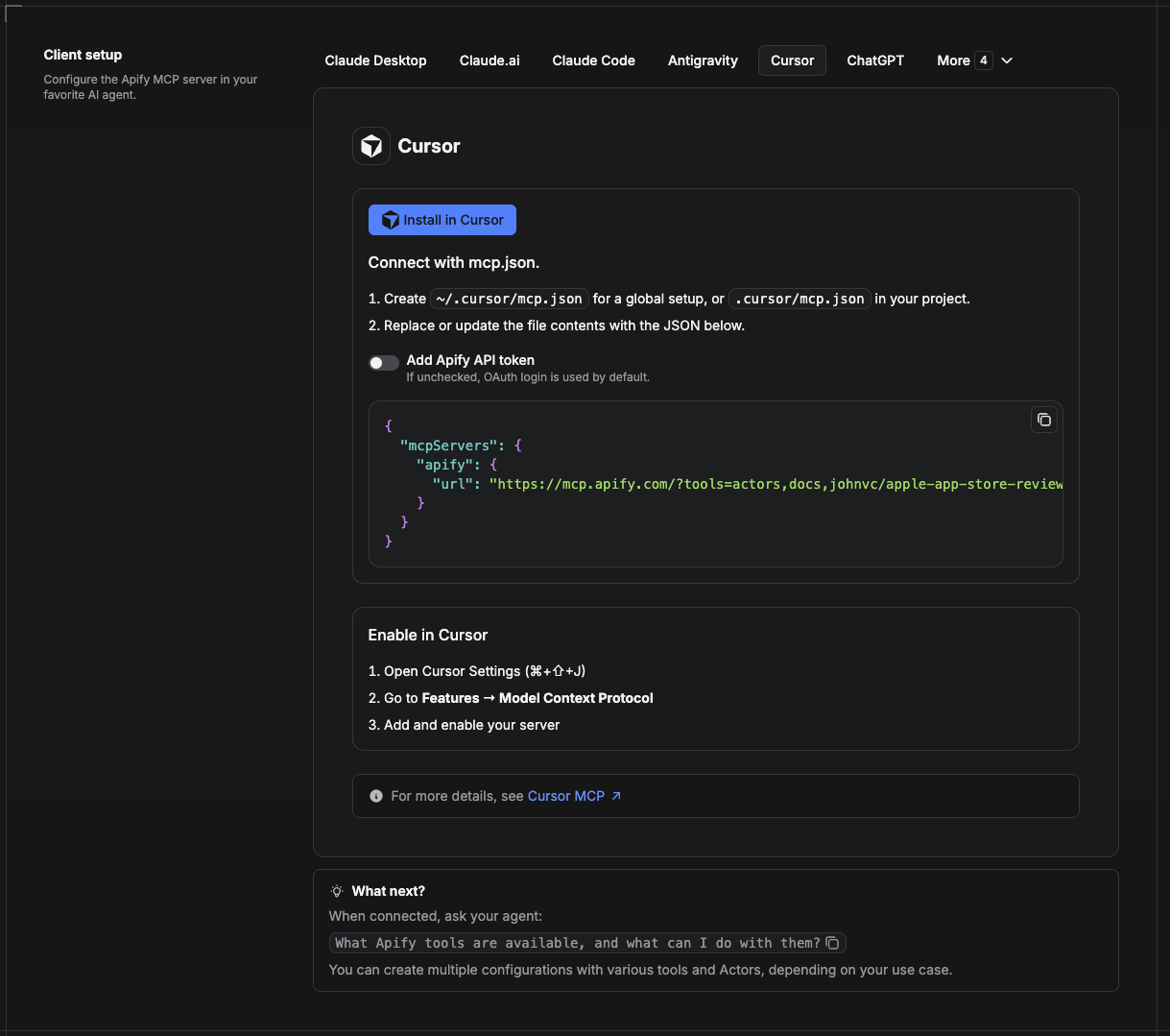
Cursor reads MCP servers from a project file at .cursor/mcp.json.
- In your project, create
.cursor/mcp.json:
{
  "mcpServers": {
    "apify": {
      "url": "https://mcp.apify.com/?tools=actors,docs,johnvc/google-maps-photos-api"
    }
  }
}
- If you prefer token auth over browser OAuth, add a header:
{
  "mcpServers": {
    "apify": {
      "url": "https://mcp.apify.com/?tools=actors,docs,johnvc/google-maps-photos-api",
      "headers": { "Authorization": "Bearer YOUR_APIFY_TOKEN" }
    }
  }
}
- Open Cursor → Settings → MCP and confirm the apify server is connected (green dot).
- In Composer or Chat, ask Cursor to call the Google Maps Photos API.
New to Cursor? Get it here: https://cursor.com/referral?code=XQP4VBLI3NNX
Install in ChatGPT
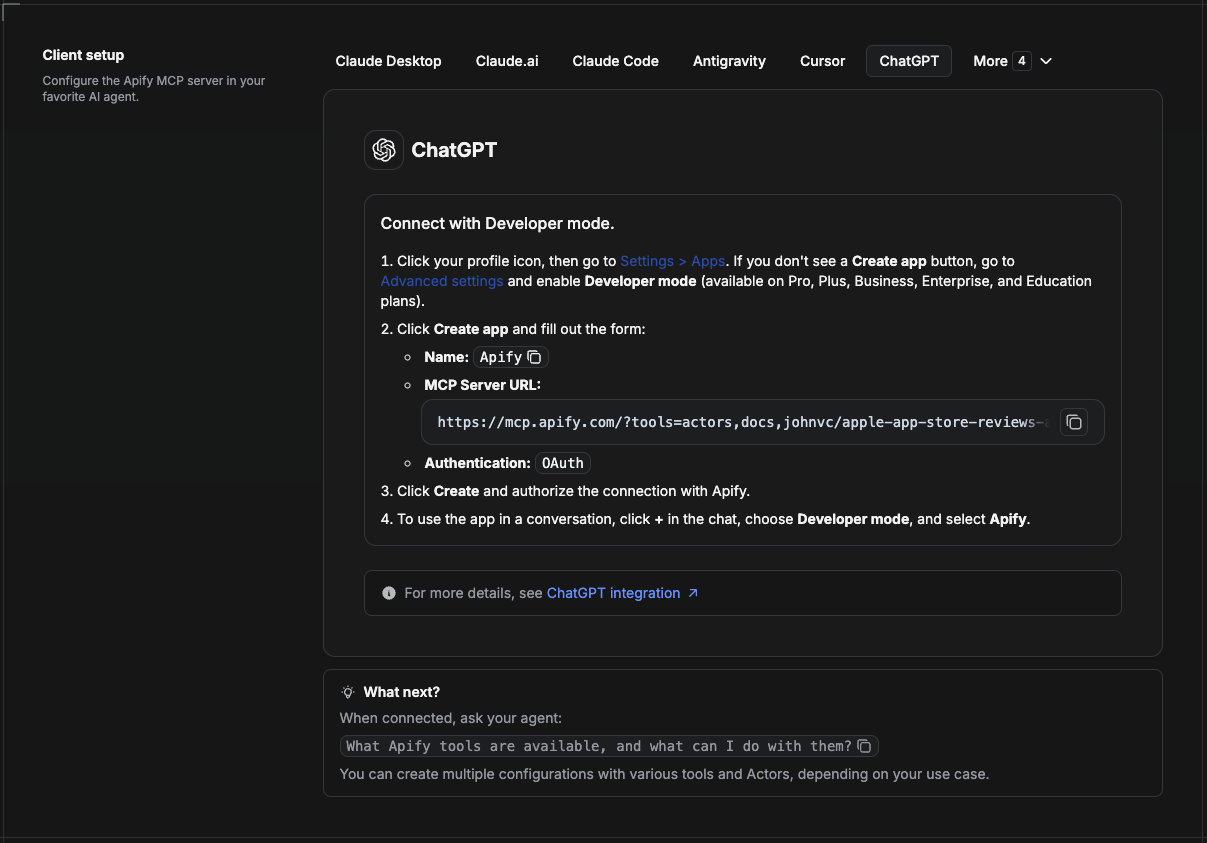
ChatGPT connects to the Apify MCP server through Developer mode (available on ChatGPT Pro, Plus, Business, Enterprise, and Education plans).
- Click your profile icon, then go to Settings > Apps. If you do not see a Create app button, open Advanced settings and enable Developer mode.
- Click Create app and fill out the form:
- Name: Apify
- MCP Server URL:
https://mcp.apify.com/?tools=actors,docs,johnvc/google-maps-photos-api - Authentication: OAuth
- Click Create and authorize the connection with Apify.
- To use the app in a conversation, click + in the chat, choose Developer mode, and select Apify.
More help: https://docs.apify.com/platform/integrations/mcp
Use the Google Maps Photos API to power local lead lists, market research, and place data for your product or AI agent.
Featured Tasks
Ready-to-run examples on the Apify Store, each targeting one local-data use case:
- Extract local business leads from Google Maps by API
- Extract phone numbers from Google Maps by zip code
- Find roofing contractor leads in Tampa with phone numbers
- Build a list of med spas in Miami with phone numbers
- Generate local leads in Claude via Google Maps MCP
- Export Google Maps Places to CSV
Last Updated: 2026.08.08
推荐服务器

Baidu Map
百度地图核心API现已全面兼容MCP协议,是国内首家兼容MCP协议的地图服务商。

Playwright MCP Server
一个模型上下文协议服务器,它使大型语言模型能够通过结构化的可访问性快照与网页进行交互,而无需视觉模型或屏幕截图。

Magic Component Platform (MCP)
一个由人工智能驱动的工具,可以从自然语言描述生成现代化的用户界面组件,并与流行的集成开发环境(IDE)集成,从而简化用户界面开发流程。

Audiense Insights MCP Server
通过模型上下文协议启用与 Audiense Insights 账户的交互,从而促进营销洞察和受众数据的提取和分析,包括人口统计信息、行为和影响者互动。

VeyraX
一个单一的 MCP 工具,连接你所有喜爱的工具:Gmail、日历以及其他 40 多个工具。

graphlit-mcp-server
模型上下文协议 (MCP) 服务器实现了 MCP 客户端与 Graphlit 服务之间的集成。 除了网络爬取之外,还可以将任何内容(从 Slack 到 Gmail 再到播客订阅源)导入到 Graphlit 项目中,然后从 MCP 客户端检索相关内容。

Kagi MCP Server
一个 MCP 服务器,集成了 Kagi 搜索功能和 Claude AI,使 Claude 能够在回答需要最新信息的问题时执行实时网络搜索。

e2b-mcp-server
使用 MCP 通过 e2b 运行代码。

Neon MCP Server
用于与 Neon 管理 API 和数据库交互的 MCP 服务器

Exa MCP Server
模型上下文协议(MCP)服务器允许像 Claude 这样的 AI 助手使用 Exa AI 搜索 API 进行网络搜索。这种设置允许 AI 模型以安全和受控的方式获取实时的网络信息。