
Isaac Sim MCP Server
Enables natural language control of NVIDIA Isaac Sim through the Model Context Protocol, allowing you to create robots, build scenes, run simulations, and debug physics from any MCP-compatible IDE.
README
Isaac Sim MCP Server
<!-- mcp-name: io.github.whats2000/isaacsim-mcp-server -->




Natural language control for NVIDIA Isaac Sim through the Model Context Protocol (MCP).
Connect any MCP-compatible IDE (Cursor, VS Code, Claude Code, Windsurf, JetBrains) to a running Isaac Sim instance and control it with plain-English prompts -- create robots, build scenes, run simulations, and debug physics all from your editor.
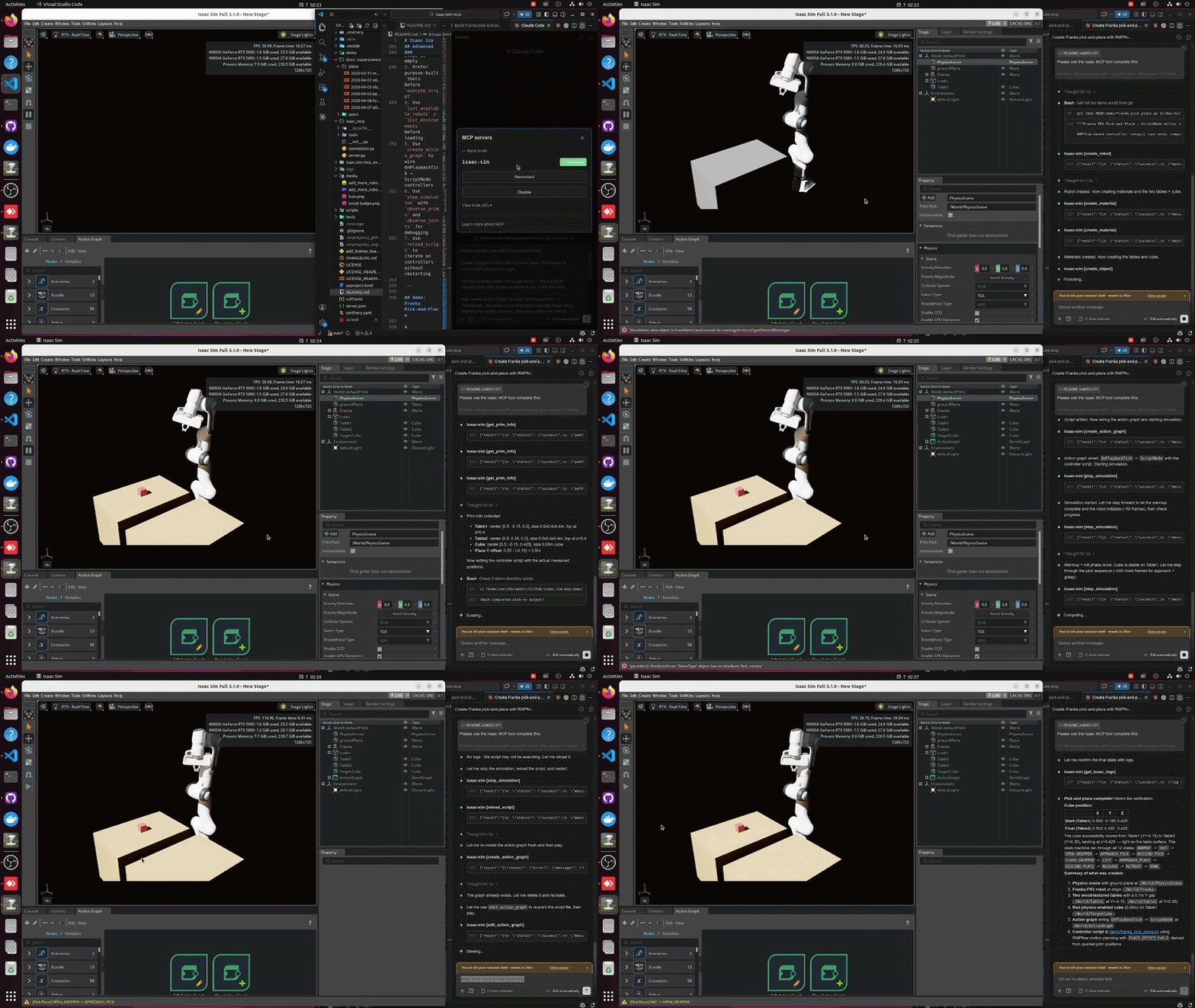
Highlights
- 42 tools across 9 categories -- scene, objects, lighting, robots, sensors, materials, assets, simulation, graphs
- 107+ robots auto-discovered from the Isaac Sim asset library (Franka, UR, Unitree, Boston Dynamics, and more)
- Step-and-observe debugging -- step the simulation and inspect prim positions, joint states, and physics in one call
- Hot-reload -- iterate on Python controllers without restarting Isaac Sim
- Multi-instance -- run multiple Isaac Sim sessions side by side on different ports
- Built for Isaac Sim 5.1.0 with a modular adapter layer for version isolation
Installation
Option A: pip install (recommended)
pip install isaacsim-mcp-server
This installs the MCP server and the isaacsim-mcp-server CLI. You still need the Isaac Sim extension from the repo (see Launching Isaac Sim below).
Option B: From source
git clone https://github.com/whats2000/isaacsim-mcp-server
cd isaacsim-mcp-server
./scripts/setup_python_env.sh
Requirements
| Requirement | Version |
|---|---|
| NVIDIA Isaac Sim | 5.1.0 |
| Python | 3.10+ |
uv |
latest (for source install) |
| Platform | Linux (Ubuntu 22.04+) |
[!IMPORTANT] Currently only Linux is supported. Windows support is planned. macOS is not supported because NVIDIA Isaac Sim does not run on macOS.
[!NOTE] We are welcoming contributions to support other Isaac Sim versions. The adapter layer is designed for easy version isolation.
Quick Start
1. Set up the environment
If you installed from source:
./scripts/setup_python_env.sh
2. Launch Isaac Sim with the extension
./scripts/run_isaac_sim.sh
You should see in the logs:
Registered 41 command handlers
Isaac Sim MCP server started on localhost:8766
<details> <summary>Optional: Beaver3D / NVIDIA API keys for 3D generation</summary>
export BEAVER3D_MODEL="<your beaver3d model name>"
export ARK_API_KEY="<your beaver3d api key>"
export NVIDIA_API_KEY="<your nvidia api key>"
</details>
3. Connect your IDE
Add the MCP server to your editor. Replace the path with your actual repo location.
<details> <summary><strong>Claude Code (CLI)</strong></summary>
claude mcp add isaac-sim /path/to/isaacsim-mcp-server/scripts/run_mcp_server.sh
Or edit ~/.claude.json / .mcp.json:
{
  "mcpServers": {
    "isaac-sim": {
      "command": "/path/to/isaacsim-mcp-server/scripts/run_mcp_server.sh"
    }
  }
}
</details>
<details> <summary><strong>VS Code</strong></summary>
Create .vscode/mcp.json in your workspace:
{
  "servers": {
    "isaac-sim": {
      "command": "/path/to/isaacsim-mcp-server/scripts/run_mcp_server.sh"
    }
  }
}
</details>
<details> <summary><strong>Cursor</strong></summary>
Open Cursor Settings > MCP, or edit ~/.cursor/mcp.json:
{
  "mcpServers": {
    "isaac-sim": {
      "command": "/path/to/isaacsim-mcp-server/scripts/run_mcp_server.sh"
    }
  }
}
</details>
<details> <summary><strong>Claude Desktop</strong></summary>
Edit the config file for your platform:
- macOS:
~/Library/Application Support/Claude/claude_desktop_config.json - Windows:
%APPDATA%\Claude\claude_desktop_config.json - Linux:
~/.config/Claude/claude_desktop_config.json
{
  "mcpServers": {
    "isaac-sim": {
      "command": "/path/to/isaacsim-mcp-server/scripts/run_mcp_server.sh"
    }
  }
}
</details>
<details> <summary><strong>Windsurf</strong></summary>
Open Windsurf Settings > MCP or edit ~/.codeium/windsurf/mcp_config.json:
{
  "mcpServers": {
    "isaac-sim": {
      "command": "/path/to/isaacsim-mcp-server/scripts/run_mcp_server.sh"
    }
  }
}
</details>
<details> <summary><strong>JetBrains IDEs</strong></summary>
Go to Settings > Tools > AI Assistant > MCP Servers and add the server. See the JetBrains MCP docs for details.
</details>
4. Start prompting
Check the connection with get_scene_info.
If the scene is empty, create a physics scene.
Add a Franka robot at the origin and a Go1 quadruped at [2, 0, 0].
Architecture
MCP Client (IDE)
      |
      v
isaacsim-mcp-server          (PyPI package / CLI)
      |
      v  TCP socket (localhost:8766)
      |
isaac.sim.mcp_extension      (Omniverse extension)
      |
      v
Handlers -> Adapter -> Isaac Sim 5.1.0 APIs
Tools
42 tools across 9 categories:
| Category | Count | What you can do |
|---|---|---|
| Scene | 7 | Inspect scenes, create physics, list/load environments, browse prims |
| Objects | 4 | Create, delete, transform, and clone primitives |
| Lighting | 2 | Create and tune lights |
| Robots | 6 | Spawn 107+ robots, inspect joints, set positions, refresh library |
| Sensors | 4 | Create cameras/LiDAR, capture images, get point clouds |
| Materials | 2 | Create and apply materials |
| Assets | 4 | Import URDF, load/search USD, generate 3D models |
| Graphs | 2 | Build and edit Action Graphs (OnPlaybackTick, ScriptNode, script file attachment) |
| Simulation | 11 | Play/pause/stop/step, execute Python, inspect physics, hot-reload |
<details> <summary>Full tool list</summary>
Scene: get_scene_info create_physics_scene clear_scene list_prims get_prim_info list_environments load_environment
Objects: create_object delete_object transform_object clone_object
Lighting: create_light modify_light
Robots: create_robot list_available_robots refresh_robot_library get_robot_info set_joint_positions get_joint_positions
Sensors: create_camera capture_image create_lidar get_lidar_point_cloud
Materials: create_material apply_material
Assets: import_urdf load_usd search_usd generate_3d
Graphs: create_action_graph edit_action_graph
Simulation: play_simulation pause_simulation stop_simulation step_simulation set_physics_params get_isaac_logs get_simulation_state get_physics_state get_joint_config execute_script reload_script
</details>
Example Prompts
Scene bootstrap
Check the connection with get_scene_info. If the scene is empty, create a physics scene.
Add stronger lighting and place a camera that looks at the workspace.
Robot layout
Create three Franka robots in a row at [0,0,0], [2,0,0], and [4,0,0].
Then add a Go1 robot at [1, 3, 0].
Environment loading
List available environments, choose a warehouse-like one, and load it.
Create a camera and capture an image.
Asset search and 3D generation
Search for a rusty desk, load the best result near [0, 5, 0], scaled to [2, 2, 2].
Advanced Usage
Multiple Instances
Run multiple Isaac Sim sessions side by side. Each uses a different port (auto-assigned from 8766).
# First instance (default port 8766)
claude mcp add isaac-sim /path/to/isaacsim-mcp-server/scripts/run_mcp_server.sh

# Second instance (port 8767)
claude mcp add isaac-sim-2 -e ISAAC_MCP_PORT=8767 -- /path/to/isaacsim-mcp-server/scripts/run_mcp_server.sh
<details> <summary>JSON config for multiple instances</summary>
{
  "mcpServers": {
    "isaac-sim": {
      "command": "/path/to/isaacsim-mcp-server/scripts/run_mcp_server.sh"
    },
    "isaac-sim-2": {
      "command": "/path/to/isaacsim-mcp-server/scripts/run_mcp_server.sh",
      "env": { "ISAAC_MCP_PORT": "8767" }
    }
  }
}
</details>
Desktop Launcher (Linux)
Install a dedicated Isaac Sim MCP application icon:
./scripts/install_desktop_entry.sh
This creates a launcher that auto-assigns ports, waits for the extension socket, and cleans up on exit.
Recommended Workflow
- Start with
get_scene_infoto verify the connection - Create a physics scene if the stage is empty
- Prefer purpose-built tools before
execute_script - Use
list_available_robots/list_environmentsbefore loading - Use
create_action_graphto wire OnPlaybackTick → ScriptNode controllers - Use
step_simulationwithobserve_primsandobserve_jointsfor debugging - Use
reload_scriptto iterate on controllers without restarting
Demo: Franka Pick-and-Place
A ready-to-run demo at demo/franka_pick_place.py using RMPflow for motion planning:
Please use the Isaac MCP tool complete this:

Create a physics scene with a ground plane, then spawn a Franka FR3 robot at the origin.

Add two textured tables with a gap along Y. Place a small textured cube with physics enabled on top of the first table.

Use `create_action_graph` to wire `OnPlaybackTick` → `ScriptNode`, and write a pick-and-place controller script using RMPflow for motion planning. Save the script to the `demo/` directory.

Use `get_prim_info` to query actual positions and sizes of the tables and cube before writing the controller — do not hardcode coordinates.

Start the simulation with Play. The robot should pick the cube from table 1 and place it on table 2. Verify the process using `step_simulation` with `observe_prims` on the cube to confirm it reaches table 2.
Uses create_action_graph with script_file for one-step Action Graph + ScriptNode setup, plus the observability tools: get_joint_config, step_simulation with observe_prims, get_physics_state, and edit_action_graph for script hot-reload.
Development
# Run the MCP inspector
./.venv/bin/python -m mcp dev ./isaac_mcp/server.py
The inspector is available at http://localhost:5173.
Setup Notes
| Script | Purpose | Default |
|---|---|---|
setup_python_env.sh |
Create venv and install package | Python 3.10 |
run_isaac_sim.sh |
Launch Isaac Sim with extension | $HOME/isaacsim |
run_mcp_server.sh |
Start the MCP server | Port 8766 |
launch_isaac_sim_mcp.sh |
Combined launcher | Auto-assigns port |
dev_mcp_server.sh |
Dev server with hot-reload | Port 8766 |
Override defaults:
PYTHON_SPEC=3.11 ./scripts/setup_python_env.sh
ISAACSIM_ROOT=/opt/isaacsim ./scripts/run_isaac_sim.sh
<details> <summary>Troubleshooting</summary>
If Isaac Sim says Can't find extension with name: isaac.sim.mcp_extension:
# Make sure you're in the repo root
pwd
test -f ./isaac.sim.mcp_extension/config/extension.toml && echo OK
Note: --ext-folder must point to the repo root, not to isaac.sim.mcp_extension/ directly.
</details>
Contributing
Pull requests are welcome. Improvements to tools, docs, adapters, and tests are all useful.
License
MIT License. Copyright (c) 2023-2025 omni-mcp, Copyright (c) 2026 whats2000. See LICENSE.
推荐服务器

Baidu Map
百度地图核心API现已全面兼容MCP协议,是国内首家兼容MCP协议的地图服务商。

Playwright MCP Server
一个模型上下文协议服务器,它使大型语言模型能够通过结构化的可访问性快照与网页进行交互,而无需视觉模型或屏幕截图。

Magic Component Platform (MCP)
一个由人工智能驱动的工具,可以从自然语言描述生成现代化的用户界面组件,并与流行的集成开发环境(IDE)集成,从而简化用户界面开发流程。

Audiense Insights MCP Server
通过模型上下文协议启用与 Audiense Insights 账户的交互,从而促进营销洞察和受众数据的提取和分析,包括人口统计信息、行为和影响者互动。

VeyraX
一个单一的 MCP 工具,连接你所有喜爱的工具:Gmail、日历以及其他 40 多个工具。

graphlit-mcp-server
模型上下文协议 (MCP) 服务器实现了 MCP 客户端与 Graphlit 服务之间的集成。 除了网络爬取之外,还可以将任何内容(从 Slack 到 Gmail 再到播客订阅源)导入到 Graphlit 项目中,然后从 MCP 客户端检索相关内容。

Kagi MCP Server
一个 MCP 服务器,集成了 Kagi 搜索功能和 Claude AI,使 Claude 能够在回答需要最新信息的问题时执行实时网络搜索。

e2b-mcp-server
使用 MCP 通过 e2b 运行代码。

Neon MCP Server
用于与 Neon 管理 API 和数据库交互的 MCP 服务器

Exa MCP Server
模型上下文协议(MCP)服务器允许像 Claude 这样的 AI 助手使用 Exa AI 搜索 API 进行网络搜索。这种设置允许 AI 模型以安全和受控的方式获取实时的网络信息。