
MCP Work History Server
A Model Context Protocol server that enables AI tools to automatically log their activities with detailed metrics like timestamps, token usage, and costs into daily markdown worklog files.
Tools
log_activity
Log AI tool activity to a daily worklog file with comprehensive metrics
README
📋 MCP Work History Server
🤖 A Model Context Protocol (MCP) server that allows AI tools to log their activities to daily worklog files with detailed tracking of tool names, AI models, and timestamps.
✨ Features
- 🕐 Precise timestamps - Logs activities with HH:MM format
- 🔧 Tool tracking - Records which AI tool performed the action
- 🧠 Model tracking - Tracks which AI model was used (e.g., gemini-2.5-pro, claude-3-sonnet)
- 📊 Comprehensive metrics - Token usage, context length, duration, cost tracking
- 🏷️ Tagging system - Categorize activities with custom tags
- ✅❌ Success/failure tracking - Log both successful operations and errors
- 📁 Daily organization - Creates separate markdown files for each day
- 📝 Clean format - Bullet-point style entries for easy scanning
- 🎯 MCP compatible - Works with any MCP-enabled AI client
🚀 Installation
npm install
🎮 Usage
Start the MCP server:
npm start
Or run in development mode with auto-restart:
npm run dev
🛠️ MCP Tool
The server provides one tool:
log_activity
Logs an AI tool's activity to the current day's worklog file in a concise, scannable format.
Parameters:
Required:
tool_name(string): Name of the AI tool (e.g., "Warp", "Claude Code", "GitHub Copilot")log_message(string): Detailed description of what was accomplished
Optional:
ai_model(string): AI model used (e.g., "gemini-2.5-pro", "claude-3-sonnet", "gpt-4")tokens_used(number): Total tokens consumed in the requestinput_tokens(number): Input tokens used (alternative to tokens_used)output_tokens(number): Output tokens generated (alternative to tokens_used)context_length(number): Context window length used (in thousands)duration_ms(number): Duration of the operation in millisecondscost_usd(number): Estimated cost in USDsuccess(boolean): Whether the operation was successful (defaults to true)error_message(string): Error message if operation failedtags(array): Tags to categorize the activity (e.g., ["coding", "debugging", "refactoring"])
Example log entries:
# 📝 Work Log - 2024-01-15

- ✅ 08:31 - Warp (gemini-2.5-pro): Refactored authentication module to use JWT tokens (1250 tokens | 8k ctx | 2.3s | $0.0043 | [refactoring, auth])
- ✅ 09:15 - Claude Code (claude-3-sonnet): Fixed database connection pooling issue (850→320 tokens | 1.1s | $0.0021)
- ❌ 10:42 - GitHub Copilot (gpt-4): Attempted to implement user profile endpoint (❌ Timeout error | [coding, api])
- ✅ 11:30 - Warp: Quick code review and suggestions (500 tokens | 0.8s)
📂 Log File Structure
Logs are stored in the logs/ directory with the naming pattern worklog-YYYY-MM-DD.md.
Each log file contains:
- 📝 Emoji-enhanced date header
- 🕐 Timestamped bullet-point entries
- 🔧 Tool name and AI model information
- 📋 Concise activity descriptions
⚙️ MCP Configuration
For Warp AI
Add this server to your Warp MCP configuration:
{
  "mcp-work-history": {
    "command": "node",
    "args": ["/Users/your-username/path/to/mcp-work-history/src/index.js"],
    "env": {},
    "working_directory": null,
    "start_on_launch": true
  }
}
For Claude Desktop
Add to your claude_desktop_config.json:
{
  "mcpServers": {
    "work-history": {
      "command": "node",
      "args": ["/absolute/path/to/mcp-work-history/src/index.js"]
    }
  }
}
Example Usage in AI Tools
Once configured, AI tools can log their activities like this:
Basic usage:
log_activity({
  tool_name: "Warp",
  log_message: "Created React component for user dashboard"
})
With comprehensive metrics:
log_activity({
  tool_name: "Warp",
  ai_model: "gemini-2.5-pro",
  log_message: "Refactored authentication system with OAuth integration",
  tokens_used: 1250,
  context_length: 8,
  duration_ms: 2300,
  cost_usd: 0.0043,
  success: true,
  tags: ["refactoring", "auth", "oauth"]
})
Error logging:
log_activity({
  tool_name: "GitHub Copilot",
  ai_model: "gpt-4",
  log_message: "Attempted to implement user profile endpoint",
  input_tokens: 800,
  output_tokens: 0,
  success: false,
  error_message: "Timeout error",
  tags: ["coding", "api"]
})
🗂️ Project Structure
mcp-work-history/
├── 📄 src/index.js          # Main MCP server code
├── 📁 logs/                 # Daily worklog files (auto-created)
│   ├── worklog-2024-01-15.md
│   └── worklog-2024-01-16.md
├── 📦 package.json          # Dependencies and scripts
├── 🚫 .gitignore           # Git ignore rules
└── 📋 README.md            # This file
🤝 Contributing
- Fork the repository
- Create your feature branch (
git checkout -b feature/amazing-feature) - Commit your changes (
git commit -m 'Add some amazing feature') - Push to the branch (
git push origin feature/amazing-feature) - Open a Pull Request
🎯 Real-World Example: Warp AI Integration
Here's how to set up automatic activity logging in Warp AI:
Step 1: Configure MCP Server in Warp
Add the following to your Warp MCP configuration:
{
  "mcp-work-history": {
    "command": "node",
    "args": ["/Users/nocoo/Workspace/mcp-work-history/src/index.js"],
    "env": {},
    "working_directory": null,
    "start_on_launch": true
  }
}
Step 2: Add Logging Rule to Warp
Configure Warp with this rule to automatically log AI activities:
Rule: "When AI task is done, use mcp-work-history to log this time AI task details. Send AI tool name (Warp), model used, detailed time, and a brief summary of this time task and result."
Step 3: See It in Action
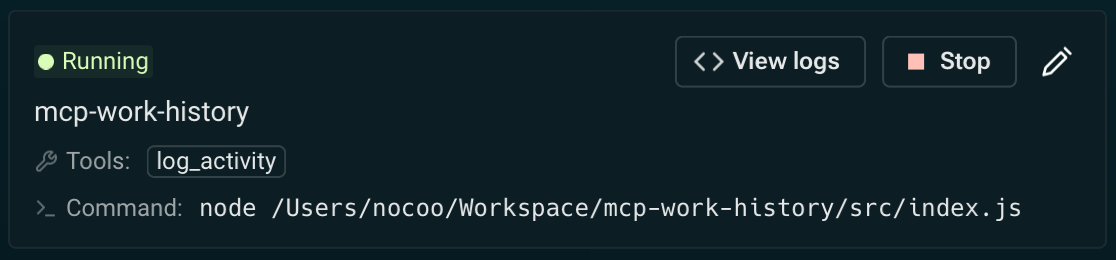
Screenshot showing the MCP Work History server automatically logging AI activities in Warp
What Gets Logged
With this setup, every AI interaction in Warp will automatically create entries like:
# 📝 Work Log - 2024-12-06

- ✅ 14:32 - Warp (gemini-2.5-pro): Refactored React component to use custom hooks for state management (1240 tokens | 4.2s | [refactoring, react])
- ✅ 14:45 - Warp (gemini-2.5-pro): Fixed TypeScript type errors in authentication module (890 tokens | 2.1s | [bugfix, typescript])
- ✅ 15:10 - Warp (gemini-2.5-pro): Added comprehensive unit tests for user service (1560 tokens | 3.8s | [testing, unit-tests])
Benefits
- 📊 Automatic tracking - No manual logging required
- 🔍 Detailed insights - Track token usage, performance, and costs
- 📈 Progress monitoring - See your daily coding accomplishments
- 🏷️ Activity categorization - Organize work with tags
- 💰 Cost tracking - Monitor AI usage costs over time
📄 License
MIT License - see the LICENSE file for details.
推荐服务器

Baidu Map
百度地图核心API现已全面兼容MCP协议,是国内首家兼容MCP协议的地图服务商。

Playwright MCP Server
一个模型上下文协议服务器,它使大型语言模型能够通过结构化的可访问性快照与网页进行交互,而无需视觉模型或屏幕截图。

Magic Component Platform (MCP)
一个由人工智能驱动的工具,可以从自然语言描述生成现代化的用户界面组件,并与流行的集成开发环境(IDE)集成,从而简化用户界面开发流程。

Audiense Insights MCP Server
通过模型上下文协议启用与 Audiense Insights 账户的交互,从而促进营销洞察和受众数据的提取和分析,包括人口统计信息、行为和影响者互动。

VeyraX
一个单一的 MCP 工具,连接你所有喜爱的工具:Gmail、日历以及其他 40 多个工具。

graphlit-mcp-server
模型上下文协议 (MCP) 服务器实现了 MCP 客户端与 Graphlit 服务之间的集成。 除了网络爬取之外,还可以将任何内容(从 Slack 到 Gmail 再到播客订阅源)导入到 Graphlit 项目中,然后从 MCP 客户端检索相关内容。

Kagi MCP Server
一个 MCP 服务器,集成了 Kagi 搜索功能和 Claude AI,使 Claude 能够在回答需要最新信息的问题时执行实时网络搜索。

e2b-mcp-server
使用 MCP 通过 e2b 运行代码。

Neon MCP Server
用于与 Neon 管理 API 和数据库交互的 MCP 服务器

Exa MCP Server
模型上下文协议(MCP)服务器允许像 Claude 这样的 AI 助手使用 Exa AI 搜索 API 进行网络搜索。这种设置允许 AI 模型以安全和受控的方式获取实时的网络信息。