
Opengraph io MCP
MCP server for the OpenGraph.io API -- extract OG metadata, capture screenshots, scrape pages, query sites with AI, and generate branded images with iterative refinement.
README
OpenGraph MCP Server (og-mcp)
og‑mcp is a Model‑Context‑Protocol (MCP) server that makes every OpenGraph.io ( https://opengraph.io ) API endpoint available to AI agents (e.g. Anthropic Claude, Cursor, LangGraph) through the standard MCP interface.
Why? If you already use OpenGraph.io to unfurl links, scrape HTML, extract article text, or capture screenshots, you can now give the same capabilities to your autonomous agents without exposing raw API keys.
Global Installation
You can install this package globally via npm:
npm install -g opengraph-io-mcp
Quick Install
CLI Installer (Recommended)
The easiest way to configure OpenGraph MCP for any supported client:
# Interactive mode - guides you through setup
npx opengraph-io-mcp-install

# Direct mode - specify client and app ID
npx opengraph-io-mcp-install --client cursor --app-id YOUR_APP_ID
Supported clients: cursor, claude-desktop, windsurf, vscode, zed, jetbrains
Claude Desktop Extension
For Claude Desktop users, you can also download the .mcpb extension for one-click installation from the Releases page.
Client Configuration
All configurations below use stdio transport (recommended). Replace YOUR_OPENGRAPH_APP_ID with your OpenGraph.io App ID.
Claude Desktop
Config location:
- macOS:
~/Library/Application Support/Claude/claude_desktop_config.json - Windows:
%APPDATA%\Claude\claude_desktop_config.json
{
  "mcpServers": {
    "opengraph": {
      "command": "npx",
      "args": ["-y", "opengraph-io-mcp"],
      "env": {
        "APP_ID": "YOUR_OPENGRAPH_APP_ID"
      }
    }
  }
}
Claude Code
One-command installation:
# macOS/Linux
claude mcp add --transport stdio --env APP_ID=YOUR_OPENGRAPH_APP_ID opengraph -- npx -y opengraph-io-mcp

# Windows (requires cmd /c wrapper)
claude mcp add --transport stdio --env APP_ID=YOUR_OPENGRAPH_APP_ID opengraph -- cmd /c npx -y opengraph-io-mcp
Cursor
Config location: ~/.cursor/mcp.json
{
  "mcpServers": {
    "opengraph": {
      "command": "npx",
      "args": ["-y", "opengraph-io-mcp"],
      "env": {
        "APP_ID": "YOUR_OPENGRAPH_APP_ID"
      }
    }
  }
}
VS Code
Config location: .vscode/mcp.json (in your project directory)
VS Code supports input prompts for secure credential handling:
{
  "inputs": [
    {
      "type": "promptString",
      "id": "opengraph-app-id",
      "description": "OpenGraph App ID",
      "password": true
    }
  ],
  "servers": {
    "opengraph": {
      "type": "stdio",
      "command": "npx",
      "args": ["-y", "opengraph-io-mcp"],
      "env": {
        "APP_ID": "${input:opengraph-app-id}"
      }
    }
  }
}
Windsurf
Config location: ~/.codeium/windsurf/mcp_config.json
{
  "mcpServers": {
    "opengraph": {
      "command": "npx",
      "args": ["-y", "opengraph-io-mcp"],
      "env": {
        "APP_ID": "YOUR_OPENGRAPH_APP_ID"
      }
    }
  }
}
JetBrains AI Assistant
Add to your JetBrains AI Assistant MCP configuration:
{
  "mcpServers": {
    "opengraph": {
      "command": "npx",
      "args": ["-y", "opengraph-io-mcp"],
      "env": {
        "APP_ID": "YOUR_OPENGRAPH_APP_ID"
      }
    }
  }
}
Zed
Config location: ~/.config/zed/settings.json
Note: Zed uses context_servers instead of mcpServers:
{
  "context_servers": {
    "opengraph": {
      "command": "npx",
      "args": ["-y", "opengraph-io-mcp"],
      "env": {
        "APP_ID": "YOUR_OPENGRAPH_APP_ID"
      }
    }
  }
}
Available Tools
OpenGraph.io Data Tools
| Tool Name | OpenGraph.io API Endpoint | Description | Documentation |
|---|---|---|---|
| Get OG Data | /api/1.1/site/<URL> |
Extracts Open Graph data from a URL | OpenGraph.io Docs |
| Get OG Scrape Data | /api/1.1/scrape/<URL> |
Scrapes data from a URL using OpenGraph's scrape endpoint | OpenGraph.io Docs |
| Get OG Screenshot | /api/1.1/screenshot/<URL> |
Gets a screenshot of a webpage using OpenGraph's screenshot endpoint | OpenGraph.io Docs |
| Get OG Query | /api/1.1/query/<URL> |
Query a site with a custom question and optional response structure | OpenGraph.io Docs |
| Get OG Extract | /api/1.1/extract/<URL> |
Extract specific HTML elements (h1, p, etc.) from a webpage | OpenGraph.io Docs |
Image Generation Tools
| Tool Name | Description |
|---|---|
| Generate Image | Create professional images: illustrations, diagrams (Mermaid/D2/Vega), icons, social cards, or QR codes |
| Iterate Image | Refine, modify, or create variations of existing generated images |
| Inspect Image Session | Retrieve session metadata and asset history for image generation sessions |
| Export Image Asset | Export generated image assets as inline base64, with optional disk write when running locally |
Image Generation
The og-mcp server includes powerful AI-driven image generation capabilities, perfect for creating social media cards, architecture diagrams, icons, and more.
Generate Image
Create images from natural language prompts or diagram code.
Supported Image Types (kind):
illustration- General-purpose AI-generated imagesdiagram- Technical diagrams from Mermaid, D2, or Vega syntaxicon- App icons and logossocial-card- OG images optimized for social sharingqr-code- QR codes with optional styling
Preset Aspect Ratios:
- Social:
og-image,twitter-card,twitter-post,linkedin-post,facebook-post,instagram-square,instagram-portrait,instagram-story,youtube-thumbnail - Standard:
wide,square,portrait - Icons:
icon-small,icon-medium,icon-large
Style Presets:
github-dark, github-light, notion, vercel, linear, stripe, neon-cyber, pastel, minimal-mono, corporate, startup, documentation, technical
Diagram Templates:
auth-flow, oauth2-flow, crud-api, microservices, ci-cd, gitflow, database-schema, state-machine, user-journey, cloud-architecture, system-context
Example Usage:
// Generate a social card
generateImage({
  prompt: "A modern tech startup hero image with abstract geometric shapes",
  kind: "social-card",
  aspectRatio: "og-image",
  stylePreset: "vercel",
  brandColors: ["#0070F3", "#000000"]
})

// Generate a diagram from Mermaid syntax
generateImage({
  prompt: "graph TD; A[User] --> B[API]; B --> C[Database]",
  kind: "diagram",
  diagramSyntax: "mermaid",
  stylePreset: "github-dark"
})
Iterate Image
Refine or modify an existing generated image.
Use cases:
- Edit specific parts: "change the background to blue"
- Apply style changes: "make it more minimalist"
- Fix issues: "remove the text", "make the icon larger"
- Crop to specific coordinates
Example:
iterateImage({
  sessionId: "uuid-from-generate",
  assetId: "uuid-from-generate",
  prompt: "Change the primary color to #0033A0 and add a subtle drop shadow"
})
Inspect Image Session
Review session details and find asset IDs for iteration.
Returns:
- Session metadata (creation time, name, status)
- List of all assets with prompts, toolchains, and status
- Parent-child relationships showing iteration history
Example:
inspectImageSession({
  sessionId: "uuid-from-generate"
})
Export Image Asset
Export a generated image asset by session and asset ID. Returns the image inline as base64 along with metadata (format, dimensions, size).
When running locally (stdio transport), you can optionally provide a destinationPath to save the image to disk. On hosted/HTTP transport, the path is ignored and the image is returned inline only.
Examples:
// Inline only (works everywhere)
exportImageAsset({
  sessionId: "uuid-from-generate",
  assetId: "uuid-from-generate"
})

// Save to disk (stdio/local only)
exportImageAsset({
  sessionId: "uuid-from-generate",
  assetId: "uuid-from-generate",
  destinationPath: "/Users/me/project/images/hero.png"
})
How it works
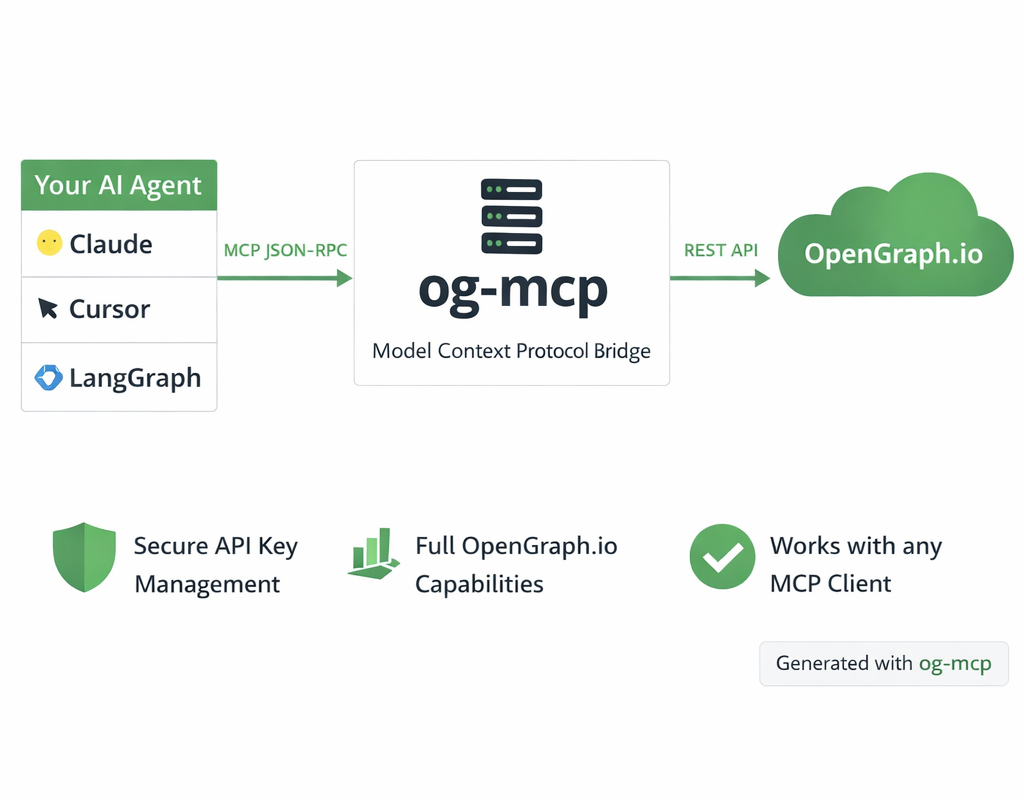 <sup>Diagram generated with og-mcp's image generation tools</sup>
The og-mcp server acts as a bridge between AI clients (like Claude or other LLMs) and the OpenGraph.io API:
- AI client makes a tool call to one of the available MCP functions
- og-mcp server receives the request and formats it for the OpenGraph.io API
- OpenGraph.io processes the request and returns data
- og-mcp transforms the response into a format suitable for the AI client
- AI client receives the structured data ready for use
This abstraction prevents exposing API keys directly to the AI while providing full access to OpenGraph.io capabilities.
Setup and Running
- Clone this repository
- Install dependencies:
npm install - Build the TypeScript code:
npm run build - Start the server:
npm start
The server will run on port 3010 by default (configurable via PORT environment variable).
Configuration
The server requires an OpenGraph.io App ID to function properly. You can provide this in several ways:
- Using environment variables: Set
OPENGRAPH_APP_IDorAPP_IDin a.envfile or as an environment variable - Using command-line arguments with stdio transport:
--app-id YOUR_APP_ID - When using SSE transport: Include it in the URL as a query parameter (
?app_id=YOUR_APP_ID)
Example .env file:
OPENGRAPH_APP_ID=your_app_id_here
# or
APP_ID=your_app_id_here
Transport Options
Stdio Transport (Recommended)
For command-line usage and npm global installation, the server can be run with stdio transport:
npm run start:stdio
You can pass the OpenGraph API key directly via command-line argument:
npm run start:stdio -- --app-id YOUR_APP_ID
When installed globally:
opengraph-io-mcp --app-id YOUR_APP_ID
This mode allows the server to be invoked directly by other applications that use MCP.
HTTP/SSE Transport
This method runs a web server that can be accessed over HTTP and uses SSE for streaming:
npm start
HTTP/SSE Transport (Alternative)
If you prefer running a persistent server instead of stdio:
npm start
Then configure your client to connect to:
http://localhost:3010/sse?app_id=YOUR_OPENGRAPH_APP_ID
Troubleshooting
- If tools aren't showing up, check that the server is running and the URL is correctly configured in Cursor
- Check the server logs for any connection or authorization issues
- Verify that Claude has been instructed to use the specific tools by name
推荐服务器

Baidu Map
百度地图核心API现已全面兼容MCP协议,是国内首家兼容MCP协议的地图服务商。

Playwright MCP Server
一个模型上下文协议服务器,它使大型语言模型能够通过结构化的可访问性快照与网页进行交互,而无需视觉模型或屏幕截图。

Magic Component Platform (MCP)
一个由人工智能驱动的工具,可以从自然语言描述生成现代化的用户界面组件,并与流行的集成开发环境(IDE)集成,从而简化用户界面开发流程。

Audiense Insights MCP Server
通过模型上下文协议启用与 Audiense Insights 账户的交互,从而促进营销洞察和受众数据的提取和分析,包括人口统计信息、行为和影响者互动。

VeyraX
一个单一的 MCP 工具,连接你所有喜爱的工具:Gmail、日历以及其他 40 多个工具。

graphlit-mcp-server
模型上下文协议 (MCP) 服务器实现了 MCP 客户端与 Graphlit 服务之间的集成。 除了网络爬取之外,还可以将任何内容(从 Slack 到 Gmail 再到播客订阅源)导入到 Graphlit 项目中,然后从 MCP 客户端检索相关内容。

Kagi MCP Server
一个 MCP 服务器,集成了 Kagi 搜索功能和 Claude AI,使 Claude 能够在回答需要最新信息的问题时执行实时网络搜索。

e2b-mcp-server
使用 MCP 通过 e2b 运行代码。

Neon MCP Server
用于与 Neon 管理 API 和数据库交互的 MCP 服务器

Exa MCP Server
模型上下文协议(MCP)服务器允许像 Claude 这样的 AI 助手使用 Exa AI 搜索 API 进行网络搜索。这种设置允许 AI 模型以安全和受控的方式获取实时的网络信息。