
vLLM MCP Server
Exposes vLLM capabilities to AI assistants, enabling chat completions, model management, and platform-aware container control with automatic detection of Docker/Podman and GPU availability across Linux, macOS, and Windows.
README
vLLM MCP Server


A Model Context Protocol (MCP) server that exposes vLLM capabilities to AI assistants like Claude, Cursor, and other MCP-compatible clients.
Features
- 🚀 Chat & Completion: Send chat messages and text completions to vLLM
- 📋 Model Management: List and inspect available models
- 📊 Server Monitoring: Check server health and performance metrics
- 🐳 Platform-Aware Container Control: Supports both Podman and Docker. Automatically detects your platform (Linux/macOS/Windows) and GPU availability, selecting the appropriate container image and optimal settings (e.g.,
max_model_len) - 📈 Benchmarking: Run GuideLLM benchmarks (optional)
- 💬 Pre-defined Prompts: Use curated system prompts for common tasks
Demo
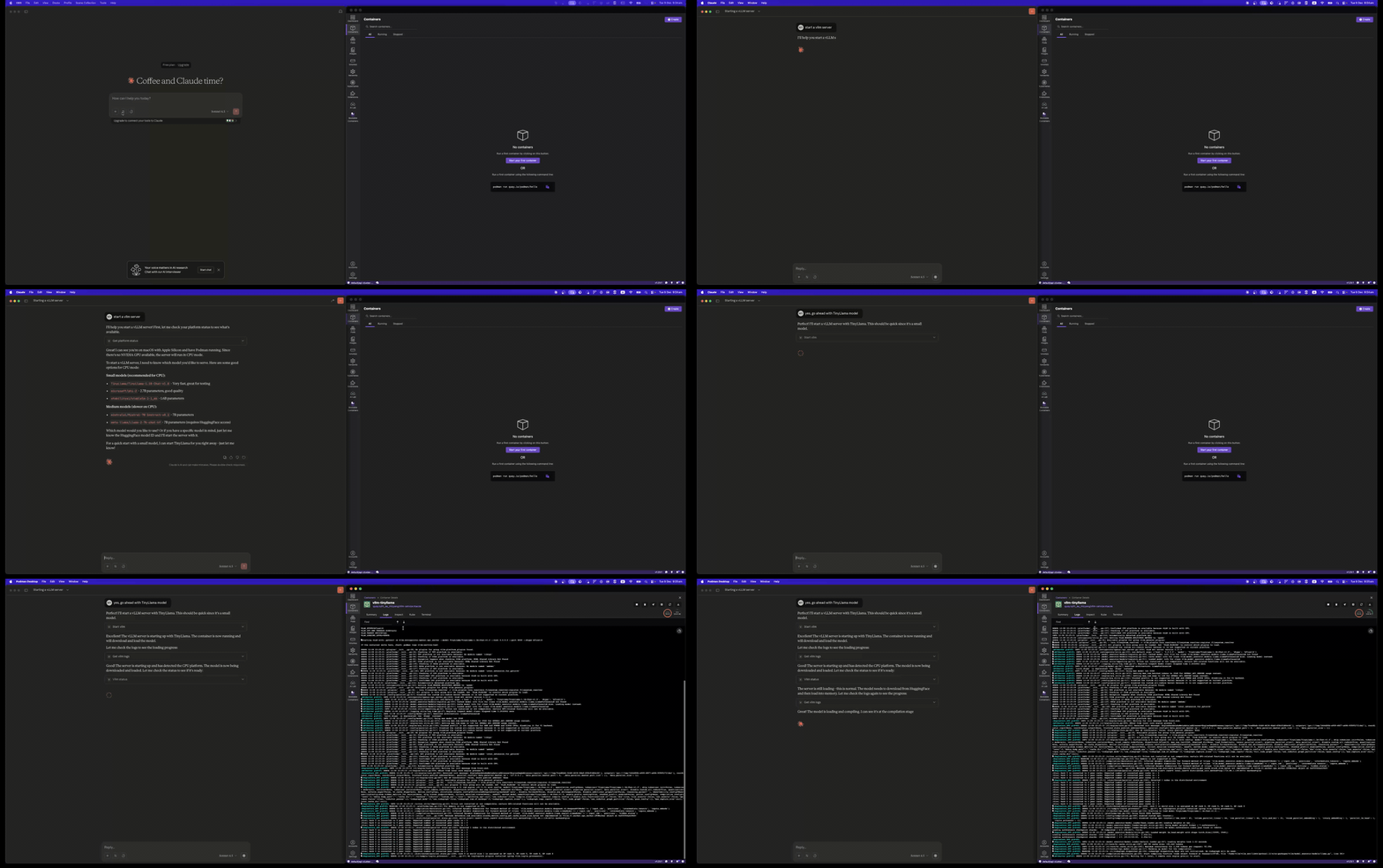
Start vLLM Server
Use the start_vllm tool to launch a vLLM container with automatic platform detection:
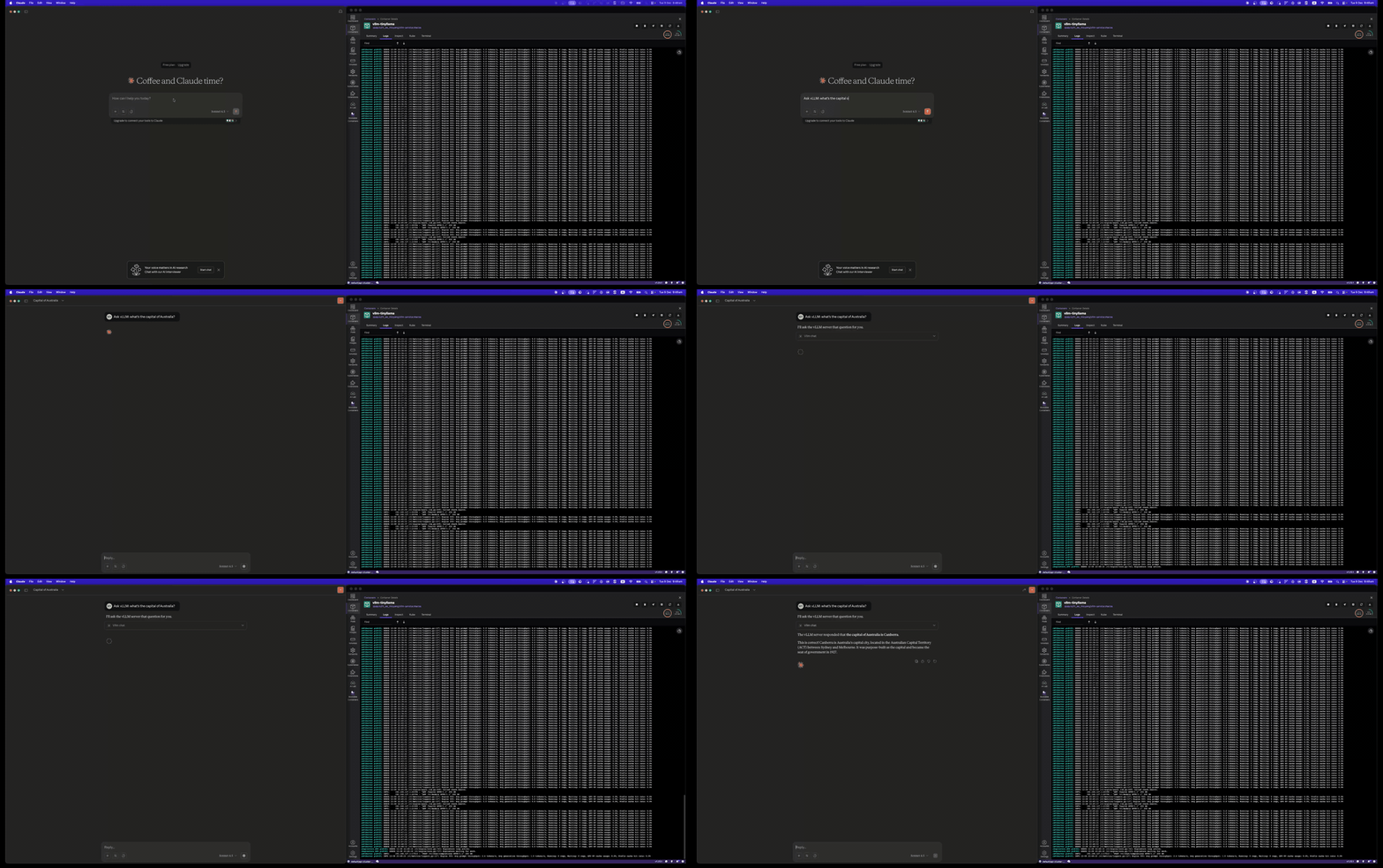
Chat with vLLM
Send chat messages using the vllm_chat tool:
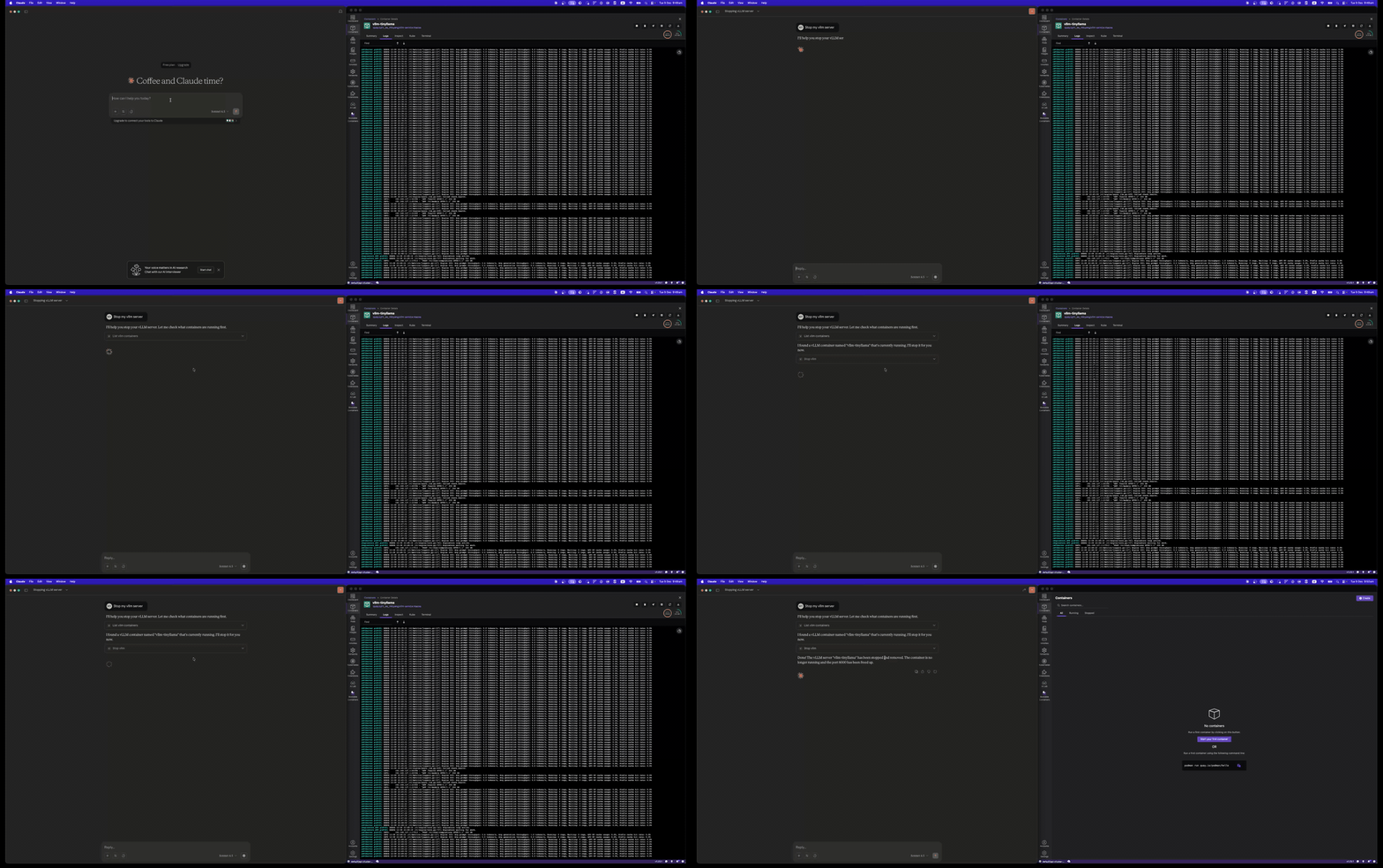
Stop vLLM Server
Clean up with the stop_vllm tool:
Installation
Using uvx (Recommended)
uvx vllm-mcp-server
Using pip
pip install vllm-mcp-server
From Source
git clone https://github.com/micytao/vllm-mcp-server.git
cd vllm-mcp-server
pip install -e .
Quick Start
1. Start a vLLM Server
You can either start a vLLM server manually or let the MCP server manage it via Docker.
Option A: Let MCP Server Manage Docker (Recommended)
The MCP server can automatically start/stop vLLM containers with platform detection. Just configure your MCP client (step 2) and use the start_vllm tool.
Option B: Manual Container Setup (Podman or Docker)
Replace podman with docker if using Docker.
Linux/Windows with NVIDIA GPU:
podman run --device nvidia.com/gpu=all -p 8000:8000 \
  vllm/vllm-openai:latest \
  --model TinyLlama/TinyLlama-1.1B-Chat-v1.0
macOS (Apple Silicon / Intel):
podman run -p 8000:8000 \
  quay.io/rh_ee_micyang/vllm-mac:v0.11.0 \
  --model TinyLlama/TinyLlama-1.1B-Chat-v1.0 \
  --device cpu --dtype bfloat16
Linux/Windows CPU-only:
podman run -p 8000:8000 \
  quay.io/rh_ee_micyang/vllm-cpu:v0.11.0 \
  --model TinyLlama/TinyLlama-1.1B-Chat-v1.0 \
  --device cpu --dtype bfloat16
Option C: Native vLLM Installation
vllm serve TinyLlama/TinyLlama-1.1B-Chat-v1.0
2. Configure Your MCP Client
Cursor
Add to ~/.cursor/mcp.json:
{
  "mcpServers": {
    "vllm": {
      "command": "uvx",
      "args": ["vllm-mcp-server"],
      "env": {
        "VLLM_BASE_URL": "http://localhost:8000",
        "VLLM_MODEL": "TinyLlama/TinyLlama-1.1B-Chat-v1.0",
        "VLLM_HF_TOKEN": "hf_your_token_here"
      }
    }
  }
}
Note:
VLLM_HF_TOKENis required for gated models like Llama. Get your token from HuggingFace Settings.
Claude Desktop
Add to your Claude Desktop configuration:
{
  "mcpServers": {
    "vllm": {
      "command": "uvx",
      "args": ["vllm-mcp-server"],
      "env": {
        "VLLM_BASE_URL": "http://localhost:8000",
        "VLLM_HF_TOKEN": "hf_your_token_here"
      }
    }
  }
}
3. Use the Tools
Once configured, you can use these tools in your AI assistant:
Server Management:
start_vllm- Start a vLLM container (auto-detects platform & GPU)stop_vllm- Stop a running containerget_platform_status- Check platform, Docker, and GPU statusvllm_status- Check vLLM server health
Inference:
vllm_chat- Send chat messagesvllm_complete- Generate text completions
Model Management:
list_models- List available modelsget_model_info- Get model details
Configuration
Configure the server using environment variables:
| Variable | Description | Default |
|---|---|---|
VLLM_BASE_URL |
vLLM server URL | http://localhost:8000 |
VLLM_API_KEY |
API key (if required) | None |
VLLM_MODEL |
Default model to use | None (auto-detect) |
VLLM_HF_TOKEN |
HuggingFace token for gated models (e.g., Llama) | None |
VLLM_DEFAULT_TEMPERATURE |
Default temperature | 0.7 |
VLLM_DEFAULT_MAX_TOKENS |
Default max tokens | 1024 |
VLLM_DEFAULT_TIMEOUT |
Request timeout (seconds) | 60.0 |
VLLM_CONTAINER_RUNTIME |
Container runtime (podman, docker, or auto) |
None (auto-detect, prefers Podman) |
VLLM_DOCKER_IMAGE |
Container image (GPU mode) | vllm/vllm-openai:latest |
VLLM_DOCKER_IMAGE_MACOS |
Container image (macOS) | quay.io/rh_ee_micyang/vllm-mac:v0.11.0 |
VLLM_DOCKER_IMAGE_CPU |
Container image (CPU mode) | quay.io/rh_ee_micyang/vllm-cpu:v0.11.0 |
VLLM_CONTAINER_NAME |
Container name | vllm-server |
VLLM_GPU_MEMORY_UTILIZATION |
GPU memory fraction | 0.9 |
Available Tools
P0 (Core)
vllm_chat
Send chat messages to vLLM with multi-turn conversation support.
{
  "messages": [
    {"role": "system", "content": "You are a helpful assistant."},
    {"role": "user", "content": "Hello!"}
  ],
  "temperature": 0.7,
  "max_tokens": 1024
}
vllm_complete
Generate text completions.
{
  "prompt": "def fibonacci(n):",
  "max_tokens": 200,
  "stop": ["\n\n"]
}
P1 (Model Management)
list_models
List all available models on the vLLM server.
get_model_info
Get detailed information about a specific model.
{
  "model_id": "TinyLlama/TinyLlama-1.1B-Chat-v1.0"
}
P2 (Status)
vllm_status
Check the health and status of the vLLM server.
P3 (Server Control - Platform Aware)
The server control tools support both Podman (preferred) and Docker, automatically detecting your platform and GPU availability:
| Platform | GPU Support | Container Image | Default max_model_len |
|---|---|---|---|
| Linux (GPU) | ✅ NVIDIA | vllm/vllm-openai:latest |
8096 |
| Linux (CPU) | ❌ | quay.io/rh_ee_micyang/vllm-cpu:v0.11.0 |
2048 |
| macOS (Apple Silicon) | ❌ | quay.io/rh_ee_micyang/vllm-mac:v0.11.0 |
2048 |
| macOS (Intel) | ❌ | quay.io/rh_ee_micyang/vllm-mac:v0.11.0 |
2048 |
| Windows (GPU) | ✅ NVIDIA | vllm/vllm-openai:latest |
8096 |
| Windows (CPU) | ❌ | quay.io/rh_ee_micyang/vllm-cpu:v0.11.0 |
2048 |
Note: The
max_model_lenis automatically set based on the detected mode (CPU vs GPU). CPU mode uses 2048 to match vLLM'smax_num_batched_tokenslimit, while GPU mode uses 8096 for larger context. You can override this by explicitly passingmax_model_lentostart_vllm.
start_vllm
Start a vLLM server in a Docker container with automatic platform detection.
{
  "model": "TinyLlama/TinyLlama-1.1B-Chat-v1.0",
  "port": 8000,
  "gpu_memory_utilization": 0.9,
  "cpu_only": false,
  "tensor_parallel_size": 1,
  "max_model_len": null,
  "dtype": "auto"
}
Note: If
max_model_lenis not specified (ornull), it defaults to 2048 for CPU mode or 8096 for GPU mode.
stop_vllm
Stop a running vLLM Docker container.
{
  "container_name": "vllm-server",
  "remove": true,
  "timeout": 10
}
restart_vllm
Restart a vLLM container.
list_vllm_containers
List all vLLM Docker containers.
{
  "all": true
}
get_vllm_logs
Get container logs to monitor loading progress.
{
  "container_name": "vllm-server",
  "tail": 100
}
get_platform_status
Get detailed platform, Docker, and GPU status information.
run_benchmark
Run a GuideLLM benchmark against the server.
{
  "rate": "sweep",
  "max_seconds": 120,
  "data": "emulated"
}
Resources
The server exposes these MCP resources:
vllm://status- Current server statusvllm://metrics- Performance metricsvllm://config- Current configurationvllm://platform- Platform, Docker, and GPU information
Prompts
Pre-defined prompts for common tasks:
coding_assistant- Expert coding helpcode_reviewer- Code review feedbacktechnical_writer- Documentation writingdebugger- Debugging assistancearchitect- System design helpdata_analyst- Data analysisml_engineer- ML/AI development
Development
Setup
# Clone the repository
git clone https://github.com/micytao/vllm-mcp-server.git
cd vllm-mcp-server

# Install uv if you haven't already
curl -LsSf https://astral.sh/uv/install.sh | sh

# Create virtual environment and install dependencies
uv venv
source .venv/bin/activate  # or `.venv\Scripts\activate` on Windows

# Install with dev dependencies
uv pip install -e ".[dev]"
Local Development with Cursor
For debugging and local development, configure Cursor to run from source using uv run instead of uvx:
Add to ~/.cursor/mcp.json:
{
  "mcpServers": {
    "vllm": {
      "command": "uv",
      "args": [
        "--directory",
        "/path/to/vllm-mcp-server",
        "run",
        "vllm-mcp-server"
      ],
      "env": {
        "VLLM_BASE_URL": "http://localhost:8000",
        "VLLM_HF_TOKEN": "hf_your_token_here",
        "VLLM_CONTAINER_RUNTIME": "podman"
      }
    }
  }
}
This runs the MCP server directly from your local source code, so any changes you make will be reflected immediately after restarting Cursor.
Running Tests
uv run pytest
Code Formatting
uv run ruff check --fix .
uv run ruff format .
Architecture
vllm-mcp-server/
├── src/vllm_mcp_server/
│   ├── server.py              # Main MCP server entry point
│   ├── tools/                 # MCP tool implementations
│   │   ├── chat.py            # Chat/completion tools
│   │   ├── models.py          # Model management tools
│   │   ├── server_control.py  # Docker container control
│   │   └── benchmark.py       # GuideLLM integration
│   ├── resources/             # MCP resource implementations
│   │   ├── server_status.py   # Server health resource
│   │   └── metrics.py         # Prometheus metrics resource
│   ├── prompts/               # Pre-defined prompts
│   │   └── system_prompts.py  # Curated system prompts
│   └── utils/                 # Utilities
│       ├── config.py          # Configuration management
│       └── vllm_client.py     # vLLM API client
├── tests/                     # Test suite
├── examples/                  # Configuration examples
├── pyproject.toml             # Project configuration
└── README.md                  # This file
License
Apache License 2.0 - see LICENSE for details.
Contributing
Contributions are welcome! Please feel free to submit a Pull Request.
Acknowledgments
推荐服务器

Baidu Map
百度地图核心API现已全面兼容MCP协议,是国内首家兼容MCP协议的地图服务商。

Playwright MCP Server
一个模型上下文协议服务器,它使大型语言模型能够通过结构化的可访问性快照与网页进行交互,而无需视觉模型或屏幕截图。

Magic Component Platform (MCP)
一个由人工智能驱动的工具,可以从自然语言描述生成现代化的用户界面组件,并与流行的集成开发环境(IDE)集成,从而简化用户界面开发流程。

Audiense Insights MCP Server
通过模型上下文协议启用与 Audiense Insights 账户的交互,从而促进营销洞察和受众数据的提取和分析,包括人口统计信息、行为和影响者互动。

VeyraX
一个单一的 MCP 工具,连接你所有喜爱的工具:Gmail、日历以及其他 40 多个工具。

graphlit-mcp-server
模型上下文协议 (MCP) 服务器实现了 MCP 客户端与 Graphlit 服务之间的集成。 除了网络爬取之外,还可以将任何内容(从 Slack 到 Gmail 再到播客订阅源)导入到 Graphlit 项目中,然后从 MCP 客户端检索相关内容。

Kagi MCP Server
一个 MCP 服务器,集成了 Kagi 搜索功能和 Claude AI,使 Claude 能够在回答需要最新信息的问题时执行实时网络搜索。

e2b-mcp-server
使用 MCP 通过 e2b 运行代码。

Neon MCP Server
用于与 Neon 管理 API 和数据库交互的 MCP 服务器

Exa MCP Server
模型上下文协议(MCP)服务器允许像 Claude 这样的 AI 助手使用 Exa AI 搜索 API 进行网络搜索。这种设置允许 AI 模型以安全和受控的方式获取实时的网络信息。